
 Sound Mill X3 : User's Guide
 Contents
 Language
 Product Home
Operating with a Remote Control Device
 Page Bottom
The Audio Solution for Solo Performers
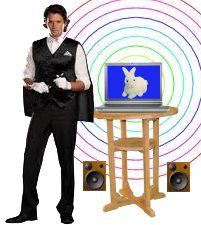
Solo working artists and performers, such as magicians, comedians, mimes, jugglers, storytellers, public speakers and others, want the freedom to move around the stage or walk into the audience seating area. The
Sound Mill
Easy Player with a Remote Control Device can offer a good option for remotely controlling sound Cues with a pocket remote. Place your laptop on a table where you can see the display (on stage or off). Use the built in laptop speakers or connect powered computer speakers for a pro-sound with punch.
All you need is any Windows laptop, a remote (for about $25USD and up), and
Sound Mill
Ultimate edition. Then let the show begin.
- Hide in your Pocket - Many remote controllers will fit in your pocket, out of sight for stealth operation. Hey, it's magic.
- Move to Other Cues Quickly - Next and Previous command buttons move from one Cue Button to the next with no delay.
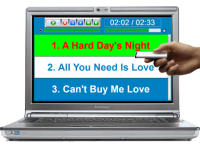
- Text Cues with Large Fonts - You'll be able to read the current cue name from the back of the room (see image on right). Name the cues to any text you want. The name could be the Media File name or the name of the associated trick. You can show one cue per screen or as many as you want. Try 3 cues visible at once: The current playing cue (highlighted in reverse video) and the previous and next cues.
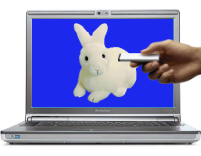
- Graphic Cues - Use graphics mnemonic cues instead of text (see image on right). The audience will only see an image on your laptop, but you will know the associated Media File. All common image formats allowed including digital camera photos. (brain with decent memory not included)
- Playlist Versions - Create any number of Playlists, one for each version of your act, and each with its own selection of sound cues (ex. a 30 minute act, 1 hour act, etc. ). Then at show time, you just load the right Playlist with a mouse click.
- Full Play Control - Play, Stop, Pause and Resume.
- Flexible Play Modes - Play cues one at a time manually allowing you to skip cues. Or start a Playlist and let it play each cue in sequence automatically. Pause and Resume are available in either mode.
- Loop Play - Play a Cue in continuous loop until you stop it. Anything you can do with our Sound Item is available.
- Fade and Mute - Remote buttons can control fade-in/fade-out of audio or mute on/off.
- Range up to 100 feet - RF Wireless remote controllers can have a range up to 130 feet. RF devices work around obstructions. Line of sight to the computer is not necessary. (Bluetooth class 2 device = about 10 meters or 33 feet).
- Works with Standard Pre-programmed Controllers - Some Controllers come pre-programmed to run Windows Media Player or PowerPoint. The Easy Player is compatible with these devices out of the box -- no additional customization needed. Just pick the right shortcuts profile from a menu.
- Operate with Your Cell Phone - There are inexpensive, third party cell phone software packages (see below) that will turn your phone into a remote.
- Operate with Number Keypad or Other Device - Even a Number Keypad can be configured to run the Player. If the device sends keystrokes to your computer, it should be usable.
- Custom Look - Pick your preferred colors and font. It's highly customizable to obtain a polished, professional look.
- Ad Hoc Sounds - If you have one or two spare buttons on the remote, you can make specific sounds play when a button is pushed (ex. a laugh cue, or applause cue). Use the Ad Hoc Sound Item Shortcuts Editor to tie special sounds to specific buttons.
- Use Any Speakers - Use the built in laptop speakers or connect powered computer speakers (even 5.1 or 7.1 sound systems).
 To Page Top
How It Works
In brief, this is how it works. You create a Sound List by dragging and dropping audio files into
Sound Mill
. Then with the Easy Player, you create a Playlist by selecting which Sound Items you want. You can make as many Playlists as desired. For example make a Playlist for your 30 minute act and one for your 1 hour act. Using the remote control, you can scroll through the Playlist cues using the Next and Previous buttons. When you get to the right cue, push the remote Play button.
The visual look is highly customizable to obtain a polished, professional look. You can show one cue per screen or as many as you like. Show cue Text or a mnemonic image (see figures on right). As you scroll through the cues, the current cue is displayed.
To operate the Easy Player with a remote, click
Behavior -- Input Device - Remote Controller
. This sets Player behavior settings to be consistent with Remote devices which don't have keyboards with arrow keys.
Easy Player Setup for Remotes
If you purchased a remote that is intended for use with Power Point Presentations or Windows Media Player, you shouldn't need to do any custom setup. Go to
Behavior > Load Current Actions Shortcuts From
and pick the pre-configured actions for the device.
If you have another wireless device you may need to create a Custom Actions Shortcuts configuration.
See our Knowledge Base article, Remote Controller - Custom Shortcuts for Easy Player
, for a step by step procedure of setting up action shortcuts for a wireless Remote device.
Choices for Remotes
The three most important features to consider when buying a remote are:
- Size - Does it need to fit in your pocket?
- Number of Buttons - You will need a separate button for each of the Sound Mill actions that you use for your performance. (ex. Play/Pause/Resume, Stop, Next Cue, Previous Cue, etc. See Actions menu for complete list). Sound Mill lets you reprogram the buttons. Play/Pause/Resume actions can each be assigned to separate buttons or combined into one button like the Play button on Windows Media Player.
- Broadcast range - How many feet away from your computer do you need to roam during a perfromance?
If you already own a remote device (RF, WiFi, Bluetooth, Infrared, etc), chances are very good that it can be used with the Easy Player. Almost all remote devices for PCs operate by a sending keystroke signal to the computer when you press any of its buttons. Simply go to Tools > Record Remote Key Signals to discover the key Signals associated with each remote button. Then map the keystrokes to Easy Player actions via Action Shortcuts. Depending on the remote you purchase, it may have buttons for: Play, Stop, Pause and Resume; Next and Previous cue; Volume Up and Down, Volume Mute; and more. Some Power Point Presenter remotes come with a lazer pointer. Decide what functions you need, then shop around for the best deal.
Application Presenter Remotes
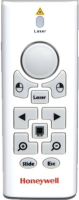
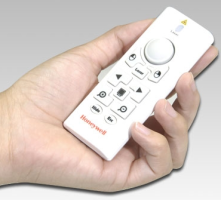
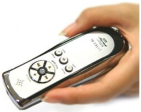
The Sound Mill Easy Player is compatible with devices designed for WMP and Power Point right out of the box -- no additional customization needed. Simply load the related shortcuts from Behavior > Load Current Actions Shortcuts From > 'Application-Type' Shortcuts . The Wireless Laser Mouse/Presenter [1] (photo to left) is an example of a good design. It is the size of a cell phone; has a good number of available buttons to work with; and a 100 Foot Range. Buttons can be set to perform any of the Player Actions. For example, the PPZOOM Zoom In and Zoom Out buttons, intended for Power Point slide zoom, could be set for Volume Up/Down Actions with the Player Action Shortcuts. Any button that sends a keystroke signal can be used with Action Shortcuts. Try this search for 'RF Wireless Presenters' if you are shopping or researching remotes. See the Purchasing Guidance below.
Purchasing Guidance
Application Presenter Remotes come in many configurations. Here are things to consider when shopping.
-
Number of available buttons - You can make the buttons perform any Easy Player action you want as long as the button sends a keystroke signal. So consider which Easy Player actions you will need, then find a remote with at least that number of buttons. Do you need any extra buttons for Ad Hoc sounds?
The cheapest remotes in this category may only have 3 or so buttons. Note that a button intended to move a mouse cursor usually will not send keystrokes and so it will not be available as a Player Action button. The same goes for the "Lazer" button on some devices. - Size - Do you need the remote to fit in a pocket? Check the dimensions.
- Transmission range - How many feet away from the computer do you want to wander? Device range can vary from 10 feet to 100+ feet.
- Transmission Protocol - The broadcast technology varies for these devices (RF, WiFi, Bluetooth, Infrared, etc). Make sure your laptop supports the device protocol.
- Read Reviews - People who have used a device may post a review at the online shopping site. You can learn a lot (pros/cons and satisfaction) from what people share.
- Price - Once you find a model you like, do a Web search on it. Prices and shipping costs vary widely.
Remote Control by Cell Phones and PDAs
Wireless Number Keypad
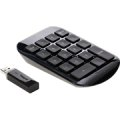
If you are interested in using a Number Keypad, see the detailed section on Wireless Number Keypad Considerations.
Recommended Configuration for Remote Use
This setup will configure the Player as shown in the Figure "Use Large Text Cues" above.
Edit the Playlist to format the Cue Button Table as follows. You may want to have only one cue display on the computer screen at a time. Each time you click the Next button, the next cue is scrolled into view. Or some performers like to have 3 Cues showing at once, the current playing Cue (highlighted) and the Previous and Next Cues.
Open the
Playlist Attributes Editor / Behavior tab, in the
Cue Button Table Sizing - Columns and Rows
section:
- Set Number of Columns to one (1). So the Cue Button Table is essentially one long column of cues.
- Set Column Size Mode to Size_to_Number_of_Columns. So the button will fill the width of the screen.
- Set Number of Visible Rows to one (1) if you want to see only the current playing (or ready to play) Cue. Set this to 3 if you want to see previous, current and next Cues at the same time.
- Set Row Size Mode to Size_to_Number_of_Rows. So the row height is sized to the height of the screen.
- Close the Playlist Attributes Editor by clicking OK.
- Enter Actions > Show Mode to test the settings.
- Now Rebuild the Player to format based on the new settings via Actions > Rebuild (F3).
Disclaimer
[1] Hardware or software products mentioned are for examples only. There are literally hundreds to chose from. We do not specifically endorse any product for these purposes nor do we imply that we have tested it with our programs. Do some research and read online reviews to reach your own conclusions based on your needs and price range. The links to product sites may not represent the best price available -- do a web search to find model prices.
* Please consider sharing your remote experiences with other users on the Forum. What model are you using? What works well, what doesn't and lessons learned.
