Sound Mill X3 : User's Guide
 Contents
 Language
 Product Home
Ad Hoc Shortcuts
 Page Bottom
Locator: Easy Player > Tools .
Overview
You can create Ad Hoc Shortcuts to play a specific Sound Item or run a Script, and associate the Shortcut to a physical button on your remote controller. The Sound Item does not necessarily need to be a cue in the Playlist cues. For example, if a button on your remote sends a Ctrl+F5 key signal, you can assign Ctrl+F5 to play a specific Sound Item (ex. an applause sound, laugh track or a horn noise, etc.).
Enabling Ad Hoc Shortcuts: Click Behavior > Enable Ad Hoc Shortcuts to turn on processing for these shortcuts. The menu item will show a check-mark when active.
Ad Hoc Sound Behavior: If you want this Ad Hoc sound to play over any currently playing cue, you need to enable the Allow concurrent sounds behavior in the Sound List Editor. Otherwise it will stop any currently playing cue.
Discover the Remote's Keys Signals
Your remote controller user's guide may tell you what keystroke signals are mapped to each physical button. If not, simply go to Tools > Record Remote Key Signals to discover the key Signals associated with each remote button.
Ad Hoc Shortcuts are stored with the Sound List. So any Playlist contained in the Sound List will have access to its Ad Hoc Shortcuts.
 To Page Top
Ad Hoc Shortcuts Editor
When you click Tools > Manage Ad Hoc Shortcuts you will see the list of Ad Hoc Shortcuts in the Playlist (if any). You can Add , Remove or Edit Shortcuts in the list.
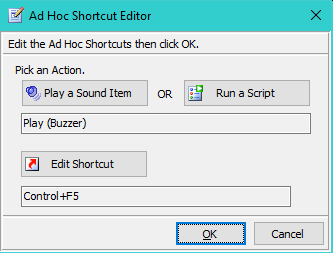
Select any Shortcut in the list or click the Add button to create one. Then click the Edit button to open the Ad Hoc Shortcuts Editor (Figure 1).
Pick an Action
- Play a Sound Item - Pops up a selection list to pick the Sound Item that will be Played by this Shortcut.
- Run a Script - Pops up a selection list to pick the Script that will be Run by this Shortcut.
Assign a Shortcut Key
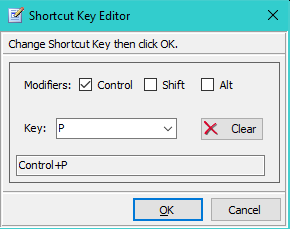
- Edit Shortcut - Opens the Shortcut Key Editor (Figure 2) to assign the keystroke signals that will fire this action. See the Help section on the Shortcut Key Editor for details and reserved keys.
View Ad Hoc Shortcuts
View Ad Hoc Shortcuts menu item will show a list of Ad Hoc Shortcuts for the current Playlist.