
 Sound Mill X3 : User's Guide
 Contents
 Language
 Product Home
Easy Player Action Shortcuts
 Page Bottom
Locator: Easy Player > Tools .
What Are Action Shortcuts?
Shortcuts in the SoundList Editor are separate and distinct from these Easy Player Action Shortcuts.
An Action Shortcut is a way to map a keystroke key (or key combination) to an action in the computer program. For example, you can create an Action Shortcut that will map keys
Ctrl+P
to the Play Selected Cue action of the Easy Player. See possible Actions listed in Figure 3.
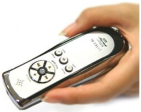
Wireless, pocket size remote control devices can be used to control the
Sound Mill
Easy Player. Virtually all remote controllers work by sending keyboard keystroke signals to the computer when you press one of its buttons. Think of the remote controller as a keyboard with a very limited number of keys. For example, you might have a Play button on the controller that sends a
Ctrl+P
signal to the computer. The actual keystrokes sent are generally based on the menu item Shortcuts of the computer program that the remote was designed for (ex. Windows Media Player, Power Point, etc).
Discover the Remote's Keys Signals
Your remote controller user's guide may tell you what keystroke signals are mapped to each physical button. If not, simply go to Tools > Record Remote Key Signals to discover the key Signals associated with each remote button.
 To Page Top
Player Actions
The following Easy Player Actions can be controlled by a remote control device by Actions Shortcuts:
Play Cue,
Stop,
Pause,
Resume,
Volume Up,
Volume Down,
Mute,
Next Cue,
Previous Cue,
First Cue,
Last Cue,
Show Mode,
Exit Show Mode,
Show Cue Buttons.
See the Actions menu items for details of each action. Show Cue Buttons is on the View menu.
Manage Actions Shortcuts menu
These menu items are found at
Tools -- Manage Actions Shortcuts
.
You can store Actions Shortcuts definitions for multiple remotes -- each definition is stored as a
Actions Shortcuts.
After you have configured the Actions, you can load it by going to
Tools > Manage Actions Shortcuts > Select Current Actions Shortcuts
.
See our Knowledge Base article, Remote Controller - Custom Shortcuts for Easy Player
, for a Step by Step procedure of setting up action shortcuts for a wireless Remote device.
Manage Actions List
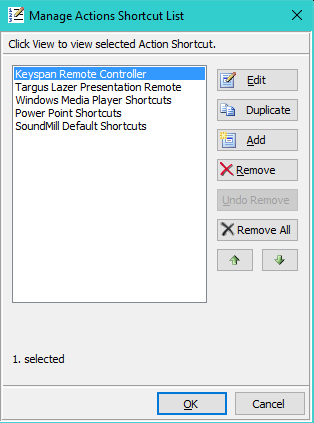
First go to the Tools -- Manage Actions Shortcuts menu which will bring up the Manage Actions List editor (see Figure 1). If there are no Actions defined yet, click the Add button to create a new one. As a time saver, you can select an existing Actions definition to make a duplicate copy then edit it. Select an existing Actions definition and click the Edit button to popup the Actions Editor (see Figure 2).
Actions Editor
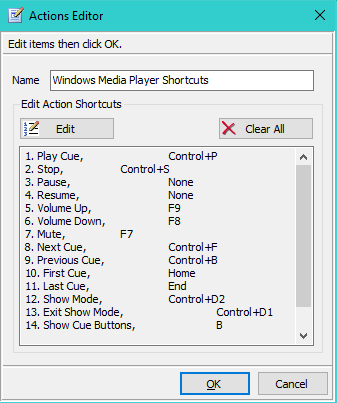
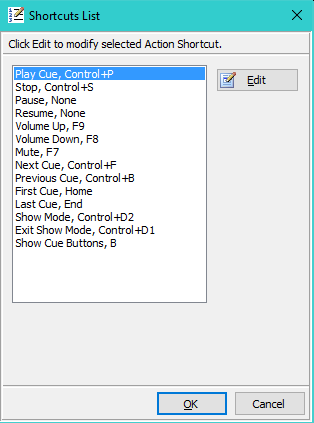
In the Actions Editor (see Figure 2), you can change the Actions Name as desired. Make sure each Actions defintion has a different name or you won't be able to tell them apart in the list. If you want to start from scratch, clicking the Clear All button will set all shortcuts to None. Click the Edit shortcuts button to bring up the Shortcuts List (see Figure 3).
Shortcut Key Editor
From the Shortcuts List (see Figure 3), pick any shortcut in the list and click the Edit button to popup the Shortcut Key Editor (see Figure 4 and detail in "Shortcut Key Editor" section below).
View Actions Shortcuts
Allows you to view the defintions of ALL Actions Shortcuts.
Remove All Menu Shortcuts for Diagnostics
This will remove all Player Menu existing shortcuts for doing problem determination. Or if the Player and your remote controller both use the same key shortcut , this will wash out all the Player shortcuts so your remote button can be take precedence. To re-establish Player Menu shortcuts, just close then re-open the Player.
Shortcut Key Editor
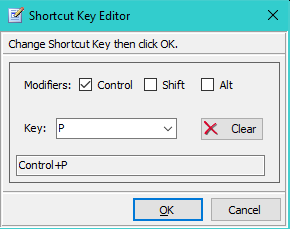
The Shortcut Key Editor (Figure 4) will set the key (or key combination) for the Shortcut. The Modifier keys (CONTROL, SHIFT and ALT) can be added as combination keys (ex Ctrl+P combination) by checking the associated Modifier checkbox. Use the Key pulldown to set the Key. The Clear button clears all Modifiers and sets the key to None.
Notes
- In the Key pulldown, it is recommended that use choices of letters (A-Z), numbers (0-9) or function keys (F1-F24). Using other key values may produce inconsistent behaviors if you are not careful. Also see Reserved Keystokes below. Of course, rules are made to be broken on occasion.
- Be careful not to duplicate a key combination that is already assigned for menu items on the Player. For example, Ctrl+N is used to create a new Playlist. Menu items shortcuts will take precedence over these user defined Shortcuts.
- If you want to nullify any Action Shortcut, set its shortcut key to "None".
- Numbers (1,2,3... ) on the Keyboard may be sent as keystokes "D0", "D1", "D2"...
- Numbers (1,2,3... ) on the Number Pad (when Num Lock is On) may be sent as keystokes "NumPad0", "NumPad1", "NumPad2"....
Reserved Key Codes
Some keys are reserved for navigating the Cue Button Table by keyboard and other purposes. These should be avoided as key selections whenever possible if you want to maintain the keyboard grid-style navigation of the Cue Button Table. If you do need to use them, you may lose some Cue Button Table navigation function. Using Reserved keys in combination with a modifier key is ok (ex. CTRL+HOME is ok, but using HOME as a single key is not recommended).
If Your Remote Uses the Escape Key (Esc)
Some remote devices send an Esc key signal when a button is pressed. You can use Escape as an action shortcut, but you must UNCHECK the ESC key exits Show Mode option on the Player Options.
Player Pre-Assigned menu item Shortcuts
Windows Reserved Keys
Windows assigns special system and user interface functions to these keystrokes. Try to avoid reassigning any of these to Shortcuts. You may get unexpected results and in some cases the shortcut will not work.
Windows moves control focus to Next or Previous control: TAB, BACKSPACE.
Windows button push : ENTER, SPACE bar. (same as a mouse click on a button and also used when the Play On Click option is used.)
Windows special purpose keys: CONTROL+ALT+DELETE and ALT+TAB, ALT,
NUM LOCK, PRINT SCREEN, SCROLL LOCK, WAKE, SLEEP, POWER, CAPS LOCK, WINDOWS key.
Wireless Number Keypad Considerations
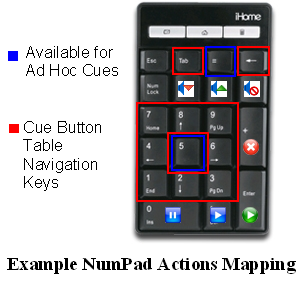
Figure 5 shows one possible actions mapping for a Number Keypad with a Num Lock key. With Num Lock Off, many keys automatically become grid-style navigation keys for the Cue Button Table : Arrow keys( UP, DOWN, LEFT AND RIGHT), PAGE-UP, PAGE-DOWN, HOME, END, TAB, BACKSPACE (outlined in Red in Figure 5). You don't need to setup Actions Shortcuts for these. The buttons with Actions symbols pasted on them (Play, Stop, Pause, Resume, Volume Bump-Up / Bump-Down, Mute) would each require an Actions Shortcut to map the action to a specific key. You can map each action to any key you choose. The keys outlined in Blue would be available for Ad Hoc Sound Actions. Finally, you can over-ride the navigation keys by setting up Actions Shortcuts or Ad Hoc Shortcuts for any of those keys.
There are two exception keys that are reserved by Windows and should not be assigned to shortcuts. The TAB key will always move focus to the next control. And ENTER key is used by windows as a key press/click and so will always perform the Play action on a selected cue button.
Number Keypads WITHOUT a Num Lock key can also be used by mapping the number keys with Actions Shortcuts. However, there are no actions for Up, Down, Left And Right, just Previous and Next. So you'll have sequential stepping through your cues (forward and back) rather than grid style navigation. Most people using remotes will probably opt to show one cue on the screen at a time, so this won't matter in that case.
However, you could still achieve the grid-style navigation on Keypads WITHOUT a Num Lock key by using the free, third party tool AutoHotkey . It would essentially involve a remapping with AutoHotkey, to remap number keys to send the Num Lock Off keystrokes (see Listing 1). If you need help with this, create a topic on the Forum .
Listing 1. AutoHotkey Remap ScriptNumpad1::Send {NumpadEnd} Numpad2::Send {NumpadDown} Numpad3::Send {NumpadPgDn} Numpad4::Send {NumpadLeft} Numpad6::Send {NumpadRight} Numpad7::Send {NumpadHome} Numpad8::Send {NumpadUp} Numpad9::Send {NumpadPgUp}
