
 Home
Home News
News Products
 Support
 User Forum
 Contact Us
 Site Map
 Search
 About
About Language
 Page Bottom
 Overview
 Screen Shots
 Manuals & Demos
 Compare Editions
 Buy Now
 Download
 Prerequisites
 FAQs
FAQs Release Notes
 Overview
Product Abstract
From low resolution video to High Definition 1080p, 4K and higher, Video Mill supports them all.


How It Works - Video Mill allows you to play one or multiple videos (and/or images) simultaneously each on its own separate display. It supports most popular video formats with resolutions up to 720/1080HD (High Definition) and 2160UHD (4K Ultra High-Definition), audio formats, and common image formats for displaying photographs in a slide show. Play videos residing on your computer, network or Internet hosted videos and live Web streams. Each Media Screen can be re-sized to enlarge or shrink the video and positioned as desired to fit display device dimensions. The video will automatically re-size to fit the Media Screen dimensions while maintaining its correct aspect ratio. When playing multiple videos, you can synchronize start/stop/pause/resume all videos with one click or pause individual screens while others continue to play. You can mute the audio track of your video and accompany the video with any audio file from your library. Create and save basic projects in minutes with drag and drop ease. Then at show time, you simply open the Media List project file and click Play. Or let the Scheduler start the show at a pre-set time. The Automator tool lets you create playlists of videos to play in sequence. And there is a lot more. See the Key features list below for the full list of functionality.
 To Page Top
FYI
Special Offers
 Special: 25% to 30% Off
As a special promotion and for a limited time, we are offering most products at 25 to 30% off the regular sale price. See the product "Buy Now" page for applied discounts.
Special: 25% to 30% Off
As a special promotion and for a limited time, we are offering most products at 25 to 30% off the regular sale price. See the product "Buy Now" page for applied discounts.
Evaluation Key
 Get an Instant, 30-Day Evaluation Key.
It will unlock all the features of the program for all editions and allow you to save your work. No obligation. No order forms. No marketing emails -- Just a key. Enjoy.
Get an Instant, 30-Day Evaluation Key.
It will unlock all the features of the program for all editions and allow you to save your work. No obligation. No order forms. No marketing emails -- Just a key. Enjoy.
Operating Systems
 This product runs on:
Windows 11/10/8/7
64bit, 32bit, and "N" editions
(See a few exceptions.)
Customer Stories
 Read how our Customers have excelled! And please consider joining our Customer Stories Program. We want to hear your story!
No special display hardware required
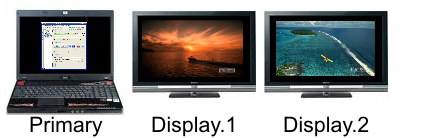
The number of secondary displays is limited only by the connection sockets on your computer or graphics adapter. Connect one or more displays (a Television, a Video Projector, a Computer External Display, virtually any digital display device) to your computer video output jack or graphics adapter (ie. VGA, S-Video, HDMI, etc). The display can range in size from a laptop screen or television screen up to a movie theater screen or highway billboard. Then simply go to Windows Control Panel > Displays > Screen Resolution: 'Extend These Displays'. Now you can project the Media Screens onto any of the connected displays.
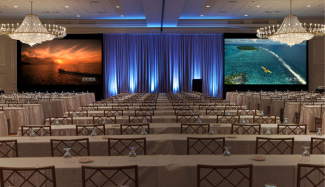
 See how Matrix Mobile Television, uses
Video Mill
to create a 10 display video wall for its clients.
See how Matrix Mobile Television, uses
Video Mill
to create a 10 display video wall for its clients.
Manage It Remotely

 Frequently used together -
Usage Scenarios:
- Administrator Management Console -
RMM can manage and monitor multiple, remote instances ofSound Mill and/orVideo Mill from a central office location. - Simple Media Player - Provide
RMM on a wireless tablet for event management personnel to control event room media. Or even control media from an admin room in a remote building. - As Unattended Kiosk - Place a kiosk device on a table for event attendees to play their own selections. (think jukebox)
- Voice Interface - The speech mode allows you to control the app by talking over any computer connected microphone. (speech recognition)
Media File Formats Supported
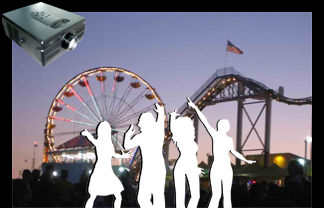

- Video Files and Live Streams - Video Mill supports these formats: All resolutions up to 720/1080HD (High Definition), 2160UHD (4K Ultra High-Definition), DivX MPEG-4, DivX H.264, Xvid MP4, MPEG-1, MPEG-2 DVD, SVCD, AVI MPEG-4, WMV, WEBM, Flash (FLV), Quicktime M2V, M4V (H.264 for iPod), MOV, Apple 3GPP2( 3G2), 3GP, Sorenson MOV, VOB, TS (Transport Stream), RealMedia** (RM, RA, RAM, etc.) and more. Some formats require a separate free codec to be installed.
- MP4 Special note - See the knowledge base article for special codec settings with MP4.
- 3D Video - 3D Stereoscopic format is supported and potentially other 3D formats dependent on your installed codecs.
- Audio Files - Audio is supported allowing you to play special theme sound tracks while muting the sound track on the video. Including but not limited to: WAV, MP3, WMA, MIDI (MID), AU, AIFF (AIF) and many more .
- Image Files - Image support allows you to load a still image into a Screen alongside your videos. (JPG, PNG, BMP, GIF and many more)
- Add a Codec for More Format Support - Some formats require installation of a Codec compatible with Windows Media Player. The free K-Lite Codec Pack has produced excellent results in our testing and supports a wide range of formats. Or use your own favorite codec.
- Import/Export Playlists - Popular industry standard playlists are supported (M3U, M3U8 or WPL).
See the Supported Formats section for a complete listing of supported formats and Codec information.
Key Operational Features

- Play Multiple Videos Simultaneously
- Automation Manager - The Automator let's you build automation Scripts to Load and Play videos in a sequential playlist format or by timing automation Steps to execute after a specified time expires. It will allow you to build professional multi-screen video scenarios for performance venues. Eleven (11) different Steps types allow for very intricate video-scapes. (Learn more. )
-
Automator with Two Behavior Modes
- As a Media Player - Acts like a standard media player which plays a playlist of videos in sequence.
- As a Slide Presenter - Acts like a standard slide presentation program (ex. like PowerPoint). It will wait after each video plays for the presentor to press the Play Next button.
- System Integration or control by Smart Phone - Integrate with other automation apps (Windows or non-Windows based) or send commands from your smart phone.
- IPC (Inter-Process Communications) Integration - Send and receive automation commands from Video Mill to Video Mill (or Sound Mill ). Enables syncronized, large scale media applications across multiple computers (ex. video walls). Provides split second timed automation of audio and video programming. The programs can reside on the same computer or separate computers on a wired or wireless network.
- Trigger automation from a third party tool - You can kick-off automation from any third party tool that can execute Windows command line tools. (via free SendTo_UDP Tool based on IPC Comms above)
- Control Over a Network - Via the separate Remote Media Manager , an untrained user (or kiosk user) can run basic operations of Sound Mill over a local computer network (wireless or wired). RMM also has an admin user interface to manage Video Mill running on remote computers.
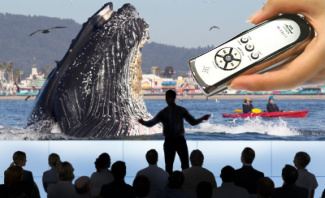
- Operate by Wireless Remote Control - Use any PC-enabled Wireless Remote Control device to control the standard presentation controls of a video playlist (play, stop, pause, resume, next, previous, volume, etc). Create a playlist for each display and sync-control them with one button click. (Learn more. )
- Operate by Elgato Stream Deck - Video Mill supports operation by the popular Elgato Stream Deck. (Learn more. )
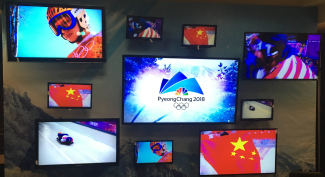
- Video Walls - Create wall designs of any number of displays (ex. rows by columns, 1x2, 2x2, 2x3, 3x3, ...). Play videos on some displays and slide show image playlists on others. Videos can be stretched across 2 or more displays. Videos can be muted so that only one video produces audio at a time or play a soundtrack audio file.
- Media List Portability from Venue To Venue - Use Virtual Displays to assign your video target displays. When you arrive at a new venue, simply map the Virtual Displays to venue physical displays in a few clicks. (Learn more. )
- Scheduler- The Scheduler provides a convenient way to schedule automation Scripts to run or to Load and Start individual Media Screens. Just start the scheduler and relax -- let the automation do all the work. Perfect for doing theater screenings of feature films preceded by a short feature and/or promotional marquees. (Learn more. ).
- Start External Programs - With the Automator you can start External Programs timed to execute with your video automation. This includes passing text variables to programs that accept command line arguments. (Learn more. )
- Text Screens- A special type of Media Screen that displays multiple lines of text from a standard text file. It provides a quick method to compose an audience message and present it on a visually interesting screen with minimal effort. Could also be used as a Lyric display system. Set font type, font size and apply a drop shadow. Use an image as background or a color gradient. (Learn more )
- Display Mirror Tool -If you do not have a direct line of sight to a secondary display, you can use this tool to monitor video on one or multiple secondary displays. (Learn more )
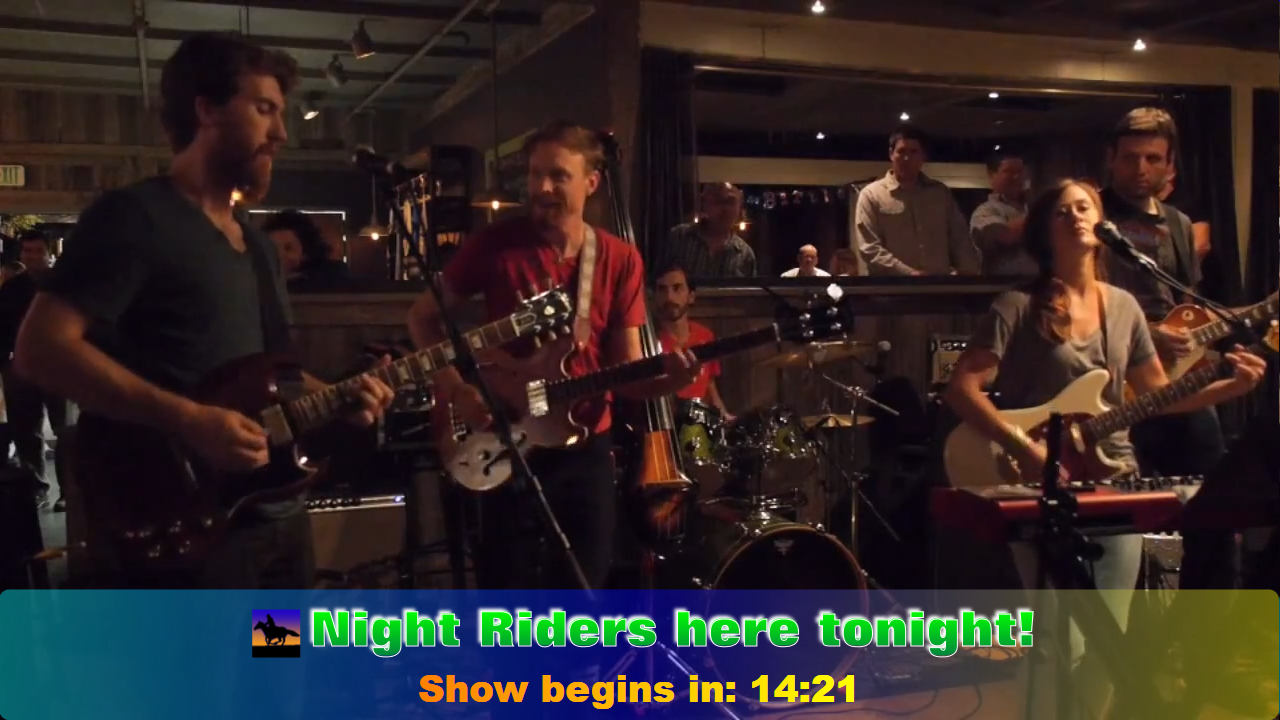
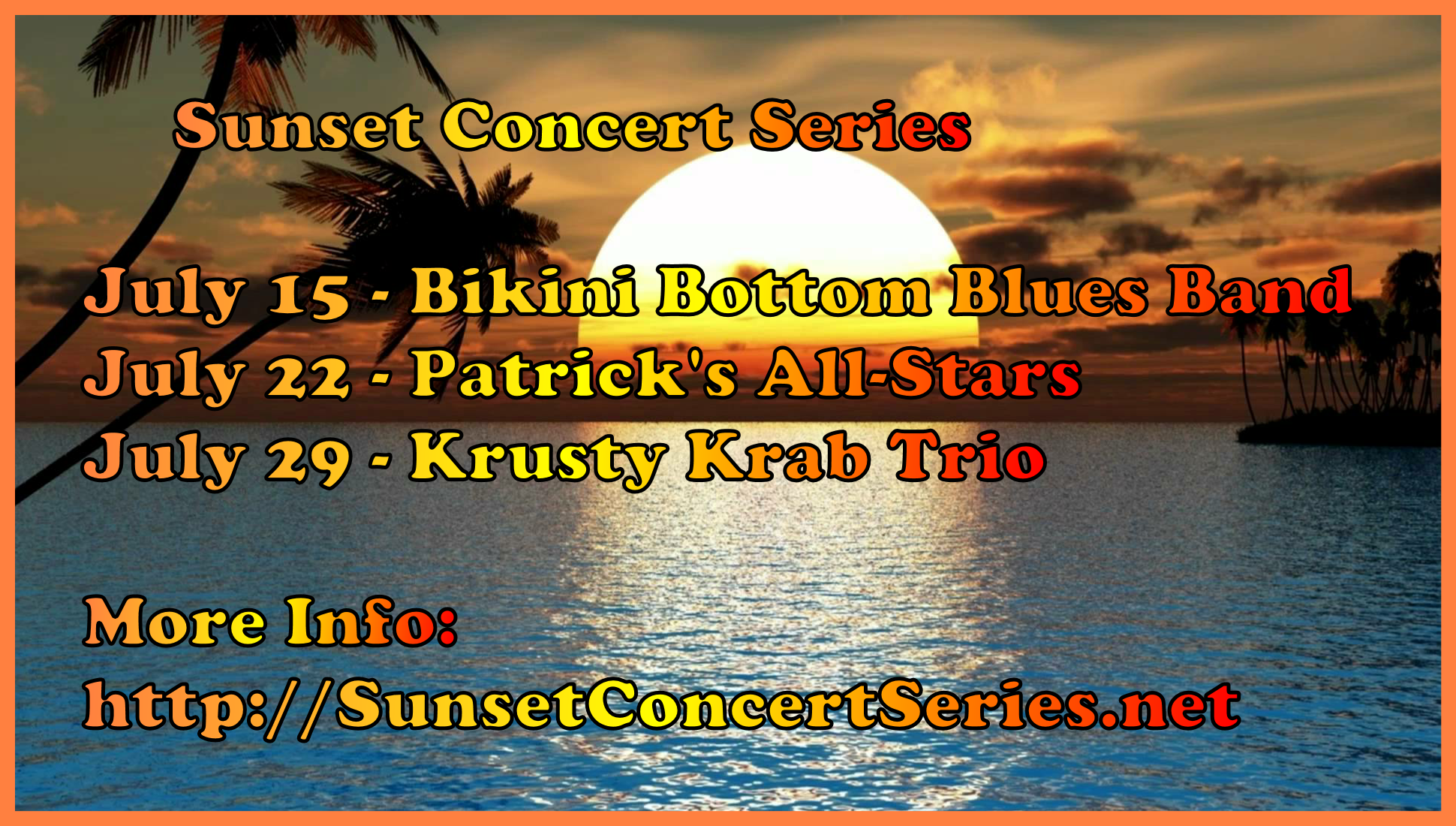
- Marquees - Overlay Playing Video with Informational Signage or audience messages. Pop-up a multi-line text and/or image box to inform the audience of important information, advertisements or display a logo. Also, create compelling, full screen signage to announce events or services. Clock, Timer and Numeric Counter features are included. (Learn more. )
- Times Messages - Presents rotating announcement messages on a timed interval. You provide the messages from a simple text file. (Learn more. )
- Subtitles - Display video subtitles for national language translation or other purposes. Supports the popular SRT Subtitles file format. Free tools are available to convert other formats to SRT. (Learn more. )
- Standard Player Controls - Oversized buttons for Play, Stop, Pause And Resume. Pre-Load and Unload one or multiple videos. Plus mouse-free operation with keyboard shortcuts.
- Go-To Play Position - Toolbar buttons jump to preset positions within a video. Useful for testing or rehersals when you need to reposition a video to a specific time position repeatedly. Go-To Start-At/End-At times, plus an unlimited number of configurable Go-To markers. (Learn more )
- Video Fade-In/Fade-Out - Individual Media Items can be set to fade-in/fade-out automatically on Play start/end. Or apply fades to All videos with one click. (Learn more )
- Fader Bar -Performs adhoc fade-in, fade-out of video/volume. Will optionally pause/resume video on fade-in, fade-out. Useful to interrupt show videos to make a PA announcement. (Learn more )
- Video Cross Fade - Provides a simple method to fade one video into the next video, commonly used by video jockeys (VJs) to avoid dead air and provide a smooth transition between videos. (Learn more )
- Video Crop - Crop your video to visually interesting shapes: Rectangle, Ellipse, Diamond and Parallelogram. Crop area size is fully configurable. Note the Ellipse cropping used in the Load Template image (on the right). (Learn more. )
- Video Stretch to Display Size - Stretch the video to the display size while maintaining video aspect ratio or stretch it to fill every display pixel by using the display aspect ratio. (Learn more. )
- Stretch Across Displays - Stretch a video or panoramic photo across two or more displays in just a few clicks. (Learn more. )
- Video Resize/Zoom - Let the video fit to the Media Screen automatically. Or do a custom resize including Zoom-in. (Learn more. )
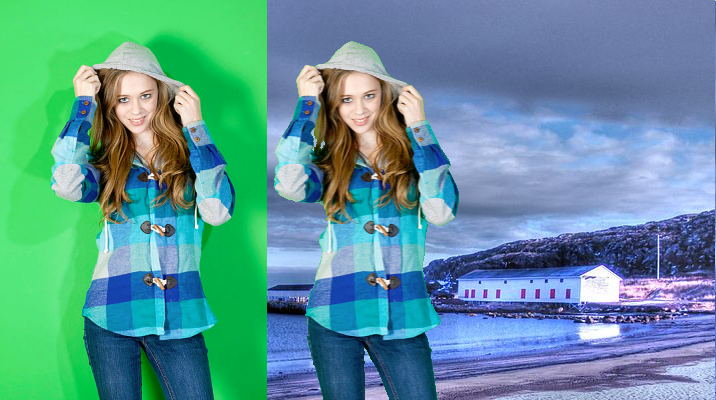
- Green Screen or Blue Screen - (Aka Chroma Key) - Record yourself against a green (or blue) backdrop, or live stream via camera, then pick a video or image as your background. (Learn more. )
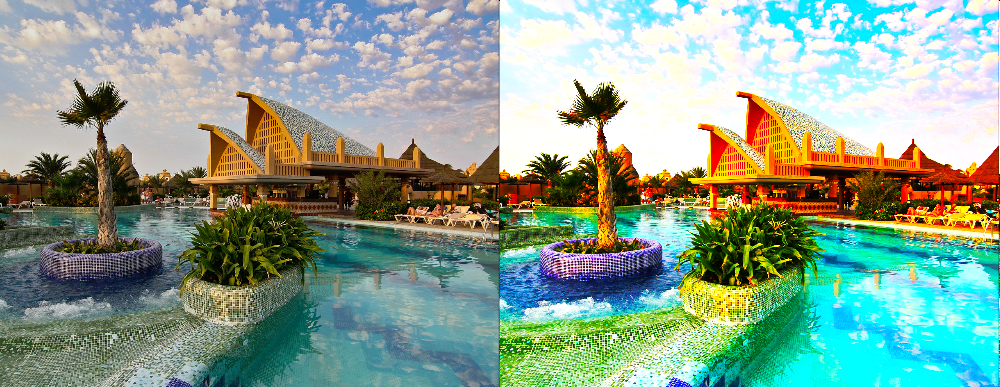
- 20+ Video Filters - Adjust color, lightness, darkness and add special effects to videos with 20+ video filters. See the complete Filter Gallery for screen shots.
- Video Speed - Speed up or slow down the video as desired by any amount. Usually used for scanning a video during editing but can be used for special effect during performance as well. (Learn more. )
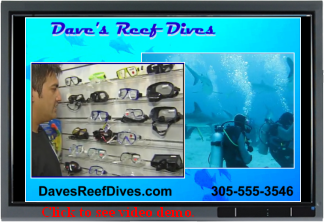
- Load Templates - Create Load Templates that feature your own themed signage to wrap around videos. Create templates for special events or simply to show your business or organization contact information. Then any video you play will be played through the current active template. See example on right. (Learn more. )
- Control Groups of Media Screens - Define a collection of Media Items and apply operations to the group with a single button click (examples: Load, Play, Stop, Pause, Resume, etc.).
- Auto-Size Screens - Set one or many Media Screens to a pre-defined size in one click.
- Auto-Position Screens - When playing multiple Media Screens, you can arrange them in Tiled or Cascaded positions in one click.
- Media Screen Visibility - Show or hide any or all running Media Screens. Videos can continue to play while hidden if desired.
- Media Screen Layout - Add colored border, a background image (when Opacity is applied), or two color gradient background.
- Media Screen - Capture - Do screen capture of videos as they play. Image files saved in common formats (GIF, JPEG, BMP, PNG).
- Play Position Scrubber Modes - The Position Scrubber bar will move the video play position of one or multiple screens depending on Apply mode selected.
- Plays audio files too - Don't like the sound track on the video itself? No problem. Mute the video sound track. And accompany the video with a separate audio track.
- Display Image files - Load a still photo into a Screen as a Marquee. Most any format supported (Gif, Jpeg, Bmp, Png, more...)
- IMAG - Stream most cameras to Media Screen - Stream most any computer connected camera to a Media Screen for IMAG or other purposes. It could be as simple as a stationary Webcam or a camcorder that is capable of streaming its feed to a file or server protocol such as http. (See our knowledge base article on Streaming Camera Feeds ).
- Volume - Set volume for individual videos. Mute audio any video if desired. Or play a separate audio file along with the videos.
- Audio Balance - Balance the audio across Left and Right channels as desired via simple slider control. (Learn more. )
- Loop/Multi-Play - Play a video in a continuous loop or a specific number of times.
- Favorite Values - Save Favorite values used when creating new Media Items.
- Start-At and End-At Play Positions - Set the times to start and/or end play at any position in the Media File. Set the time with one button click to the current playback position or enter a time via a time set dialog.
- Delay - Set a time to delay before and/or after playing a sound (Pre/Post Delay). Useful when looping a video but a delay is required between plays.
- Eliminate App Screen Glare with Dark Skinned Theme - Use a High Contrast Theme from Windows Control Panel > Personalize when in a darkened venue. (see Screen Shots page)
- Windows 32-bit and 64-bit support - Operates in full 64-bit mode on x64 systems.
- More... - This is the short list of features. See the User's Guide for a complete tour.

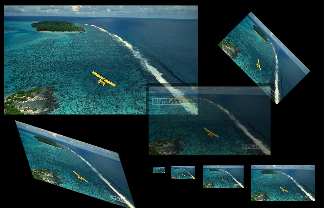
Media Screen Animation - Effects and Transforms
- Use Effects alone or in any combination on any video.
- Opacity - Opacity (transparency level) allows you to fade the video image in and/or out.
- Rotate - Rotate Effect rotates the video orientation to any angle between 0 and 360 degrees.
- Scale - Scale Effect multiplies the video size (larger or smaller than the video recorded size.)
- Skew - Skew Effect bends the sides of the video at an angle to change perspective.
- Translate - Translate Effect translates the video position (moves it) within the Media Screen.
- Set Origin Point - Provides alternate pivot point behavior for some effects (ex. on rotation).
- Timing - Set a Start time for an Effect and a Duration time for an effect animation.
- Motion Behavior - Five methods are provided for how the effect behaves when the animation reaches a target value. (ex. reverse or stop animation)
- Cycle Speed - Speed up or slow down an animation.
Key Editing Features

- Drag and drop - Use Windows Explorer or other file manger to drag and drop video files into your Media List.
- Copy and Paste Editing - You can copy a video with all of its configurations and paste as a new Media Item.
- Sort List - Sort provided on several criteria for more productive editing.
- View/print Reports - View a report (a.k.a. video design plot) showing the list of videos and configurations applied to each video. You can save as a file and/or print the report. Set the level of information and detail as desired.
- Save your designs - Save and restore all video configuration design work as Media List files.
Video Mill Usage Scenarios
Keyboard short cuts to start, stop, pause and resume play make it easy to control the videos with a laptop computer positioned nearby (mouse-free operation). Connection and setup to any TV display takes only a minute.
Business and sales professionals can walk into a potential client's
conference room, connect to the room's TV or video Projector and give a video sales pitch tailored to the customer. Pick and chose the most relevant videos for the customer.
Teaching professionals will appreciate the ability to play two video demonstrations side by side -- Pausing one to point out a detail.
Mobile performers and entertainers such as magicians, story tellers and artists will bring a whole new dimension to their performance.
Most large entertainment venues now have digital video projectors to project an image onto a stage screen. Take advantage of this whole new dimension to the entertainment experience. Set the mood with video backdrops. Video is more lifelike and virtually free compared to the expense of renting painted backdrops.
For Theater productions, design a complete video plot for a show and print a report for the show tech listing all timing and special instructions. Loop and multi-play allow your to use short videos as continuous backdrops over a long scene (ex. rain or snow storm, ocean beach, etc.) .
For music concerts, play videos of band members, crowd reactions, band videos (sound can be muted of course) or just interesting clips related to the piece of music being played.
For Haunted Mansion Walk-throughs or Museum Displays
Whether you are a designer for an amusement park attraction or museum display, or you just want to create a spooky walk-thru for Halloween at your home or school, Video Mill provides the perfect video capability. Loop and multi-play allow your to rerun a short video continuously. Add time delays between plays.
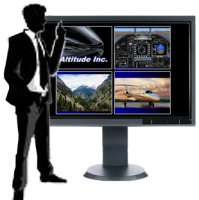
As the old sales mantra goes, "Always be selling!". There is no better time to bring your sales promotions to the attention of your customers then while they are actually in your store or venue. Play two promo videos side by side with a separate sound track. If one promo doesn't interest the customer, maybe the second one will.
See the video of In-Store Sales Display.
For Security and Status Monitoring
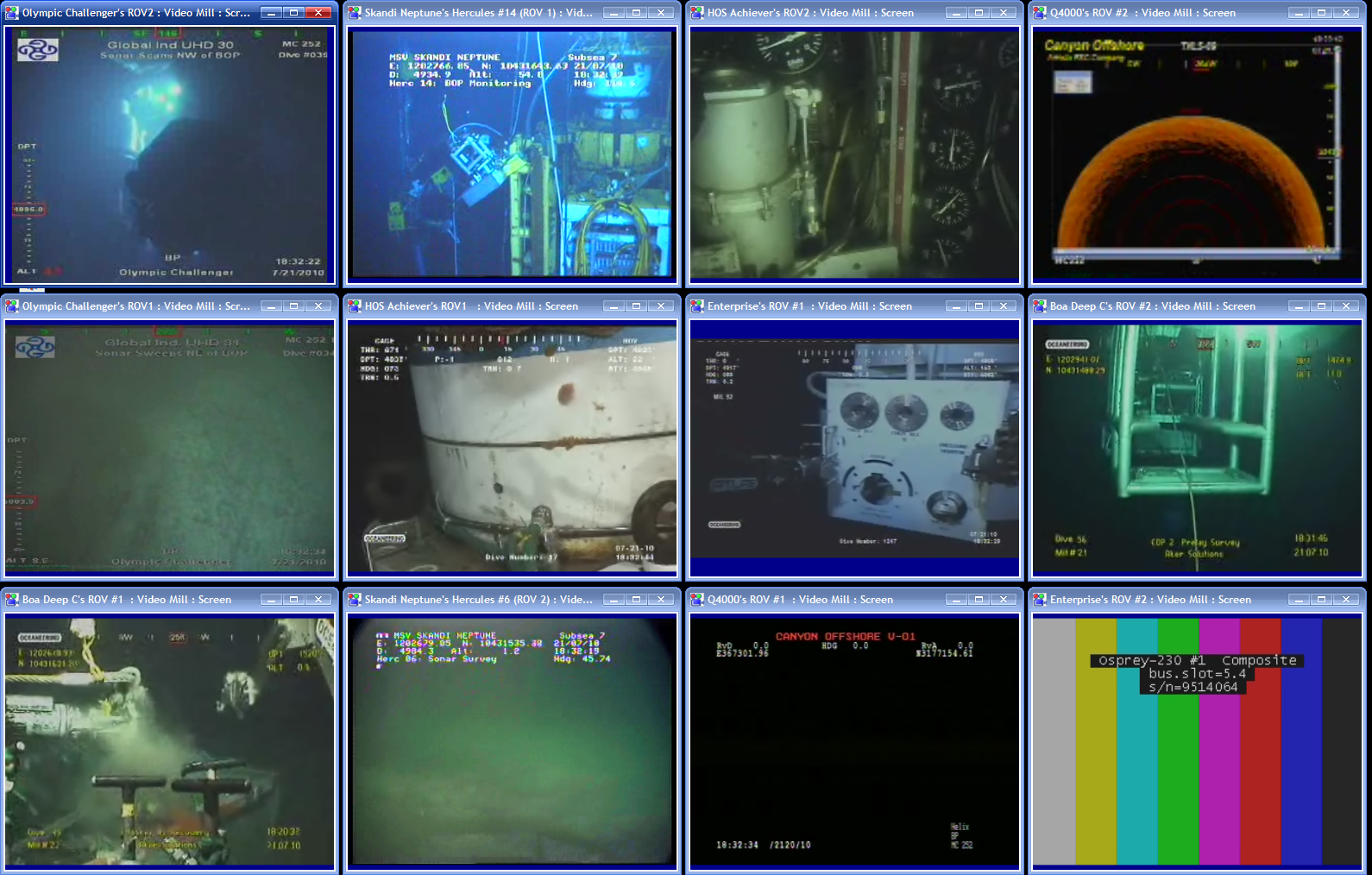
Build your own command center of live streaming feeds. The feeds can be Internet streaming feeds as in the example screen shot of the Deep Water Horizon remote submersibles ( ROVs) camera feeds (above, right). Or build your own home/business security command center using networked Webcams placed at strategic locations. When something of interest happens on one of the screens, just re-size the window to zoom in on the action.
