Sound Mill X3 : User's Guide
 Contents
 Language
 Product Home
Announcements with Music Programming
 Page Bottom
Locator: Automator > Edit Script > Edit Script .
About Announcements
The Automator provides several methods for injecting Announcements (pre-recorded audio messages) into music programming. The music programming is paused for the duration of the announcement(s) playback. The Announcement audio files are added to the Soundlist as SoundItems just like any other audio file (mp3, wav, etc). You build a Script with Play Steps (for SoundItems, Listing 2) and mark the Script as Announcements (Figure 1, pick from 3 types of Announcements below).
There are a variety of flexible methods to schedule, time and repeat announcements depending on your project needs. You can also run an Announcement Script manually or add it to the running Scheduler. You can change announcement sets over the course of a day as often as you need to.
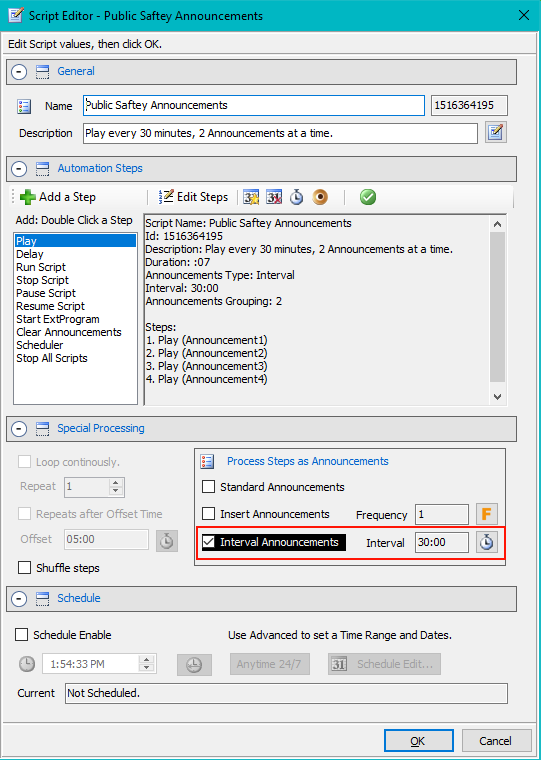
You mark a Script as Announcements by checking one of the checkboxes in the Special Processing > Process Steps as Announcements section of the Script Editor (Figure 1). There is no limit on the total number of announcements you can add to an Announcement Script.
Announcements and MP3 Tags
If you are using the Automator Now Playing Screen projected full screen onto a display for crowd viewing, you can use specific Artwork and MP3 tags related to the announcement. See Music with Announcements Artwork section.
 To Page Top
Announcement Script Types
These Announcement Types perform different behaviors. Pick the one that fits your project requirements. You may decide to run multiple Announcement Scripts of different types over the course of the day.
Announcement Types
- See complete descriptions and instructions in the sections below.
- Insert Announcements - The Automator inserts one or multiple announcements after a music track ends. You can set the Insert Frequency to insert after every music track, or every two, or three, etc. Thus announcements do not interrupt the music programming.
- Interval Announcements - The Automator plays one or multiple announcements at a regular time interval. You decide on the time interval (ex. every 5 minutes, 30 minutes, an hour etc). The current playing music track is paused while the announcement(s) play, then music resumes.
-
Standard Announcements
- Sequential Announcements - Each announcement in the script is played in sequence) until they have all played (see Listing 7).
- Offset Timed Announcements - Each announcement is played when an offset time is elapsed (ex. 5 minutes after the script is started). Each announcement can and should have a different offset. Each announcement is played one time (see Listing 8). Music plays during the time between these announcements.
-
Scheduled Announcements - Each announcement is Scheduled to play at a specific time of day (see Listing 9). Useful for event time messages (ex show starting, store closing, etc).
Ex. Play (Announcement4), Sched: At 5:00:00 PM
Notes
- Only Play Steps - Only Play Steps are processed in Announcement Scripts. Other types of Steps including Delay Steps are ignored.
- Announcement Collisions - The flexibility of Announcements timings means your setup could potentially cause a collision (one announcement timer pops while another one is playing). In this case, the newly arriving Announcement simply cancels the one that is playing.
Two Ways to Run Announcements
After you have created an Announcement Script there are two ways to run it.
1) Run Manually
Select the Announcement Script in the Automator list then click the Run Script button ( ) .
) .
Case 1a:
If no music Script is currently playing,
the Announcements will play by themselves. This will pause anything else that might be playing in the Scheduler or the Soundlist Editor. After Announcements have completed, paused music will be resumed. Note that in this case(1a), Insert Announcements will just end immediately since Insert behaviour depends on music tracks playing.
Case 1b:
If there is a music Script currently running,
the Announcements will be injected into the running music script.
2) Run by Run-Script Step
In a automation script, you can add a Run-Script Step to execute the Announcements script (see Listing 1. Master Program Script). It can be immediate execution, Offset-Timed or Scheduled like any other Step.
General Script Implementation
In this implementation, we will use three Scripts: 1) A Master Program Script to run the other Scripts; 2) A Script for the music playlist; 3) A Script containing the daily announcements you want to play on a timed interval over the course of the day. There are other ways to combine announcements with music but this is a modular approach that can be easily modified for future changes to either the announcements set or swapping music playlists.
Instructions
- Daily Announcements Script - Create a Script that has Play Steps for each announcement track (Listing 2). See specific instructions below for 'Interval Announcements'.
- Music Playlist Script - Create a Script (ex. Beatles Playlist) that has Play Steps for each music track (Listing 3). Alternately, it could also play an internet music stream (if the stream service allows access).
-
Master Program Script
- Create a Script that has Run-Script Steps for each of the other scripts (Listing 1).
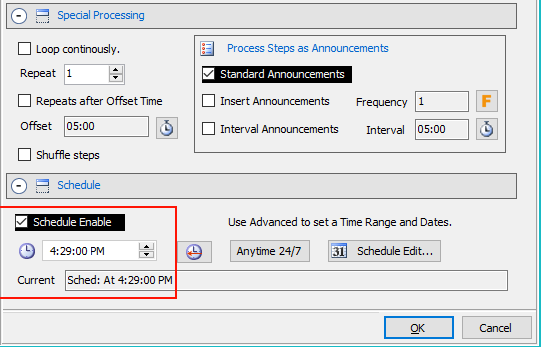
- Check the Schedule Enabled checkbox (see at bottom of Figure 1) and set the desired schedule start time. If you don't care about a specific start time, you can set it to run anytime the Scheduler starts (click the 'Anytime 24/7' button, bottom of Figure 1).
- Important: The Run Script Steps for any Announcements MUST COME BEFORE the Run Script (Beatles Playlist) Step (Listing 1). That puts the announcements on a stack before the music playlist starts executing.
- Scheduled Announcements - (optional) If you have Announcements intended for a specific Time-Of-Day (ex store closing, end of day announcements, etc), you can create a Script that has scheduled Play Steps (see Listing 9).
How to Run It
To start the programming, simply run the Master Program Script by starting the Scheduler (Scheduler > Start menu item).
Listing 1. Master Program ScriptScript Name: Master Program Sched: At 8:00:00 AM Steps: 1. Run Script (Daily Announcements) 2. Run Script (Beatles Playlist)
Listing 2. Daily Announcements ScriptScript Name: Daily Announcements Announcements Type: Interval Interval: 15:00 Announcements Grouping: 2 Steps: 1. Play (Announcement1) 2. Play (Announcement2) 3. Play (Announcement3) 4. Play (Announcement4)
Listing 3. Beatles Playlist ScriptScript Name: Beatles Playlist Loop continously. Shuffle Steps when run. Steps: 1. Play (A Hard Day's Night) 2. Play (All You Need Is Love) 3. Play (Can't Buy Me Love) 4. Play (Come Together) 5. Play (Day Tripper) 6. Play (Eight Days a Week) 7. Play (Eleanor Rigby) 8. Play (From Me to You) ... 26. Play (Yellow Submarine) 27. Play (Yesterday)
Options for Announcement Behavior
Adding 'Silence' Padding To Announcements
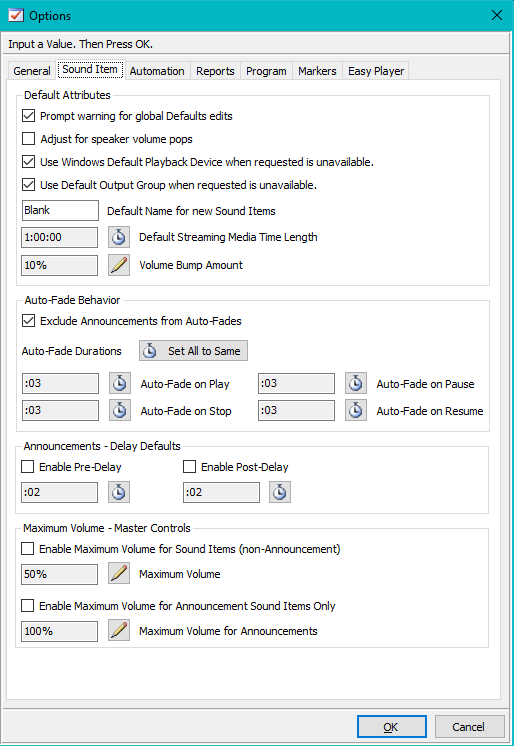
You can also automatically force all announcements to have a Pre-Delay and/or Post-Delay which will add 'Silence' padding before and/or after each announcement (see Announcements - Delay Defaults settings in the Sound Item Options (Figure 7). It can provide a less abrupt transition between the music and the announcements if desired.
Using Auto-Fade for Smooth Transitions
To make a smoother transition between the music and announcements, you can use the Auto-Fade feature. When Auto-Fade is applied, music will fade out and pause, the announcement will play. When the announcement ends, the music will resume and fade back in to its set volume. Auto-Fade-Out On Pause and Auto-Fade-In On Resume are the recommended Auto-Fades to use for this purpose.
Exclude Announcements from Auto-Fades
If you are using Auto-Fades for the music programming, you may want to exclude your Announcements from Auto-Fade behavior. Do this by checking the option Exclude Announcements from Auto-Fades in the Sound Item Options (Figure 7).
Using different Volumes for Announcements and Music
See Announcements Volume vs Music Volume section below.
Special Processing with Announcements
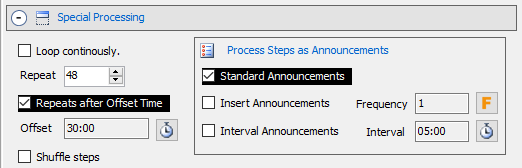
The Special Processing controls (Figure 2) work differently for Announcement type scripts.
Loop continously and Repeat
For Insert and Interval Announcements type scripts, Loop continously and Repeat are ignored because by their logic they continue to execute until the music script is stopped or you Clear Announcements.
With Standard Announcements: Loop and Repeat work depending on the type of Play steps used.
- Sequential Announcements Steps (non-Timed Steps) will Loop or Repeat. Usually used with Repeats after Offset Time. (Figure 2)
- Offset-Time Announcements Steps will Loop or Repeat. But you MUST use the Repeats after Offset Time option. When using Offset-Time Steps make sure the Repeat Offset is set to allow all steps to execute before repeating the script.
- Scheduled Announcements Steps ignore Loop and Repeat. These inherently execute only once.
Repeats after Offset Time
After the designated Repeat Offset time expires, the script will run again. Example, Figure 2 sets the script to repeat every 30 minutes.
Shuffle steps
Checking the Shuffle steps checkbox (Figure 2) will cause the steps to be Shuffled into a new random order each time the announcements cycle through to repeat.
For Insert and Interval Announcements type scripts, if you have multiple announcement scripts then checking the Shuffle steps checkbox in any of those scripts will cause shuffle to apply to all scripts of that type.
Any Announcement Play Steps that have applied time settings (Offset-Timed Or Scheduled) will ignore Shuffle steps.
Clear Announcements
This provides a convenient way to swap different sets of announcements in/out of your programming over the course of a business day. You can do it manually or scheduled in automation scripts. Clearing Announcements does not stop any music programming that is running.
Every time you run an Insert or Interval Announcements Script, its Play Steps get added to the stack of Announcements. That may or may not suit your needs. If you want an Announcements Script to replace (not add to) any existing set of announcements, you need to execute a Clear Announcements Step. This could be useful when you want to change announcements depending on a time of day.
Clear Announcements will stop any announcement that is currently playing. It will also remove any Scheduled or Offset-Timed Announcements Play Steps that are already set to run at a future time.
Ways to Clear Announcements
- By Script - You can run a Script to Clear Announcements then replace Announcements if needed (Listing 4).
- Manually - You can also Announcements manually in the Automator clicking the Announcements > Clear Announcements menu item.
- In the Scheduler - If the music programming is running under the Scheduler, click Scheduler > Clear Announcements menu item.
Clear Levels
- Clear Announcements (All) - Clears all current running Announcements and all Announcements scheduled to run at a later time.
-
Clear Announcements (Running Only) - Clears current running Announcements ONLY. Excludes any later scheduled announcements already in the scheduled list (if scheduled via RunScript command). This is a good option for cases when you want to stop announcements from playing at the moment by keep announcements that are scheduled for later in the day. So for example, if you already scheduled Store-Closing-Announcements with the RunScript command below, it would still remain scheduled if Clear Announcements(Running Only) is run before 5PM.
Run Script (Store-Closing-Announcements), Sched: At 5:00 PM
Listing 4 explanation
The Script is scheduled to run at noontime (12:00PM). Step #1 Clears all current Announcements including any scheduled Announcements. Step #2 runs another Announcements script to add Afternoon Announcements. Note that Step #2 waits until 2 seconds has elasped before executing (Offset: :02). That gives Clear Announcements time to finish its work before adding more Announcements. This script could also be run manually.
Listing 4. Clear Announcements ScriptScript Name: Setup Afternoon Announcements Sched: At 12:00:00 PM Description: Effectively replaces current Announcements with a new set (Afternoon Announcements). Steps: 1. Clear Announcements (All) 2. Run Script (Afternoon-Announcements), Offset: :02
View Announcements Currently Active
You can view which Announcements are currently active (playing or waiting to play) at a given time. Where you look depends on whether your programming is running in Scripts run in the Automator run or in the Scheduler. The active list should change after executing Clear Announcements. Insert and Interval Announcements at the end of the list with a midnight time stamp but obviosuly repeat over time.
- Running in the Automator - Click Tools > View Running Scripts.
- Running in the Scheduler - Click Scheduler > View Scheduler Plan.
Insert Announcements
Behavior
Announcements are inserted in-between sequentially playing music tracks. The Insert Frequency defines when to insert the announcement(s) (ex Frequency 1=after every music track, 2=after every two tracks, etc). The number of announcements inserted is determined by the Insert Announcements Grouping (see below). Announcements selection is cycled -- see Announcements Cycling below.
Rules
- Only Play steps allowed (no other step types).
- Only sequential Play steps allowed (ie no Offset-Timed or Scheduled steps).
- If you run multiple Insert Announcement scripts, the Insert Frequency set by the most recent script to run is used, and Play Steps get ADDED to the stack of Insert Announcements.
- Insert Announcements will not work with most Web music streams because the streams do not have end of track indicators. (use the other Announcement types for Web music streams.)
Announcements Cycling
Cycling is used for Insert and Interval Announcements. You can specify how many announcements should play at a time (Grouping). So for example, assume you have 4 announcements to play and you set announcements to play every 10 minutes. You set the Grouping to 2 announcements. So at the 10 minute mark, Announcement-1 and Announcement-2 will play. At the 20 minute mark, Announcement-3 and Announcement-4 will play. Then at the 30 minute mark, Announcement-1 and Announcement-2 will play again and so on. This Announcements Cycling continues until you end the programming or Clear Announcements. You can also shuffle announcements (random selection) using the Shuffle Steps checkbox (Figure 3).
Insert Announcements Grouping
The Grouping number designates how many Insert Announcements will play when it is time for Announcements to be inserted. Example, Grouping=2 means play 2 announcements. If you have have an odd number of announcements but want to keep announcements paired when they play, you can use a Play step for an audio file that has 1-2 seconds of silence (ex. Play (Silence2secs)).
Set this under the Automator >
Announcements > Insert Announcements Grouping
menu.
Instructions
- Create a Script with Play Steps for each of your announcement Sound Items.
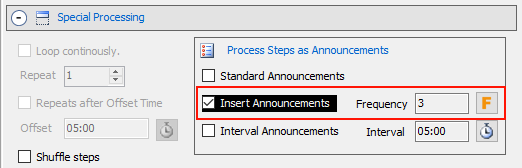
- Mark the Script as Announcements. Check the Insert Announcements checkbox the Script Editor (Figure 3).
- Set the Insert Frequency to the desired number by clicking the Frequency edit button. (Figure 3).
- Now Follow the General Script Implementation above.
- Enabling a schedule time for the script is optional. (Figure 5)
Listing 5 explanation
This Script will play announcements after every 3 music tracks play. Grouping=2 means play 2 announcements at a time. After all 4 announcements have played, announcement selection begins again at Step #1 (Announcement1). Insertion continues as long as the associated music script is running.
Listing 5. Example - Insert AnnouncementsScript Name: Four Insert Announcements Id: 582127336 Announcements Type: Insert Insert Frequency: 3 Announcements Grouping: 2 Steps: 1. Play (Announcement1) 2. Play (Announcement2) 3. Play (Announcement3) 4. Play (Announcement4)
Interval Announcements
Behavior
Announcement(s) are played at a regular Time Interval that you pick (ex. every 15 minutes) by suspending any currently playing music track. When the Announcement(s) end, the music track is resumed. The number of announcements played is determined by the Interval Announcements Grouping (below). Announcements selection is cycled (see Announcements Cycling above).
Rules
- Only Play steps allowed (no other step types).
- Only sequential Play steps allowed (ie no Offset-Timed or Scheduled steps).
- If you run multiple Interval Announcement scripts, the Time Interval set by the most recent script to run is used, and Play Steps get ADDED to the stack of Interval Announcements.
Interval Announcements Grouping
The Grouping number designates how many Announcements will play when it is time for Interval Announcements to play. Example, Grouping=2 means play 2 announcements. If you have have an odd number of announcements but want to keep announcements paired when they play, you can use a Play step for an audio file that has 1-2 seconds of silence (ex. Play (Silence2secs)).
Set this under the Automator >
Announcements > Interval Announcements Grouping
menu.
Instructions
- Create a Script with Play Steps for each of your announcement Sound Items.
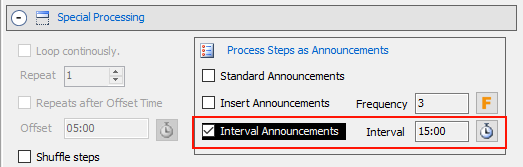
- Mark the Script as Announcements. Check the Interval Announcements checkbox the Script Editor (Figure 4).
- Set the Time Interval with the adjacent time edit button Figure 4).
- Now Follow the General Script Implementation above.
- Enabling a schedule time for the script is optional. (Figure 5)
Listing 6 explanation
This Script will play announcements at an interval of every 15 minutes. Grouping=2 means play 2 announcements at a time. After all 4 announcements have played, announcement selection begins again at Step #1 (Announcement1).
Listing 6. Example - Interval AnnouncementsScript Name: Four Announcements - Interval Id: 1928030215 Announcements Type: Interval Interval: 15:00 Announcements Grouping: 2 Steps: 1. Play (Announcement1) 2. Play (Announcement2) 3. Play (Announcement3) 4. Play (Announcement4)
Standard Announcements - Played Sequentially
Behavior
When Play Steps Are sequential (NOT Timed): (Listing 7). When the script runs, music tracks pause. Each announcement is played in sequential order (like a playlist). When the last announcement ends, music tracks resume. Also see the Special Processing with Announcements section above for Repeat considerations.
Rules
- Only Play steps allowed (no other step types).
- Only sequential Play steps allowed to get this playlist effect. Do NOT mix Offset Timed steps with sequential steps (non-timed) in the same Standard Announcements script. If needed, make two separate Announcement scripts, one for sequential Play steps and one for Offset-Timed steps.
- If you run multiple Standard Announcement scripts, the most recent run script will effectively cancel the previous run script if it is still running.
Instructions
- Create a Script with Play Steps for each of your announcement Sound Items. (Listing 7)
- Mark the Script as Announcements. Check the Standard Announcements checkbox the Script Editor (Figure 5).
- Enabling a schedule time for the script is optional. (Figure 5)
Listing 7 explanation
This Script is scheduled to run at 4:50PM, 10 minutes before closing time at 5PM. When it starts, it plays 4 announcements in sequence then ends to resume music playback.
Listing 7. Example - Standard Announcements - SequentialScript Name: Standard Announcements - For Closing Time Id: 1234191741 Sched: At 4:50:00 PM Announcements Type: Standard Steps: 1. Play (Announcement1) 2. Play (Announcement2) 3. Play (Announcement3) 4. Play (Announcement4)
Standard Announcements - Offset Timed
Behavior
Play steps are Offset-Timed: Each announcement Step is timed to play at an time Offset from the run start time of a Script. For example, if the Script starts at 1:00PM, and the Step Offset is 5 minutes, the announcement will play at 1:05PM. Also see the Special Processing with Announcements section above for Repeat considerations.
The Announcement type is a bit more work to setup than Interval Announcements. Generally, use this Offset Timed approach when you want announcements to play at irregular times. If you want to play announcements at regular intervals (ex every 5 minutes), it is much easier to use Interval Announcements.
Rules
- Only Play steps allowed (no other step types).
- Only Offset Timed Play steps allowed to get this timing effect. Do NOT mix Offset Timed steps with sequential steps (non-timed) in the same Standard Announcements script. If needed, make two separate Announcement scripts, one for sequential Play steps and one for Offset-Timed steps.
- If you run multiple Standard Announcement scripts, the most recent run script will effectively cancel the previous run script if it is still running.
Timing/Repeat
If you want this script to Repeat, you MUST use the Repeats after Offset Time option (Figure 5).
Instructions
- Create a Script with Play Steps for each of your announcement Sound Items. (Listing 8)
- Mark the Script as Announcements. Check the Standard Announcements checkbox the Script Editor (Figure 5).
- Edit each Step to assign it an Offset Time. (see Step Editor )
- Now Follow the General Script Implementation above.
- Enabling a schedule time for the script is optional. (Figure 5)
Listing 8 explanation
This Script will play each announcement at the offset time shown. Offset clock starts as soon as the Script is started. Note that the offsets are at irregular times. See Behavior comment above for easier setup when the time is regular.
Listing 8. Example - Standard Announcements - Offset TimedScript Name: Offset Timed Announcements Id: 453840473 Announcements Type: Standard Steps: 1. Play (Announcement1), Offset: 05:00 2. Play (Announcement2), Offset: 15:00 3. Play (Announcement3), Offset: 22:00 4. Play (Announcement4), Offset: 25:00
Standard Announcements - Scheduled
Behavior
Each announcement Play Step is scheduled for a Time Of Day and played by the Scheduler. Scheduled Steps do not Repeat even if the script is set to Repeat.
Rules
- If a Script has its Schedule Enabled (Figure 5), it will be automatically added to the Scheduler when the Scheduler is started. Scripts with Schedule Disabled are ignored by the Scheduler.
- Only Play steps allowed (no other step types).
- Only Scheduled Play steps allowed to get this timing effect.
- You can run multiple Standard Announcement scripts with Scheduled Play steps.
- Scheduled Play steps can only be run by the Scheduler.
How to run it
- By starting the Scheduler - Check the Schedule Enabled checkbox (see Figure 5) and set the desired schedule.
- Manually add to the running Scheduler - If the Scheduler is already running and you want to add scheduled announcements to it, select the Announcements Script in the Automator list, then click the Scheduler > Add Selected Script to Scheduler menu item. If the Script has its Schedule Enabled it will execute at its scheduled time. If the Script does not have its Schedule Enabled, it will execute immediately and add its Steps to the Scheduler Plan.
Note: You CANNOT run this script outside of the Scheduler by clicking the Run Script button (). Only the Scheduler can handle scheduled Steps.
Script Schedule Considerations
If you plan to use Clear Announcements during the business day to change Announcement sets, it is a good practice to set this Script Schedule to run just before its first scheduled play step (in Listing 9 that is 4:29PM). Using that schedule time, you can perform Clear Announcements (Running Only) during the day and this script will still remain in the Scheduler Plan.
If you don't care when it gets added to the Scheduler Plan, just set its Schedule to run Anytime 24/7 (see button on Figure 5). In that case, it runs anytime the Scheduler starts.
Instructions
- Create a Script with Play Steps for each of your announcement Sound Items. (Listing 9)
- Mark the Script as Announcements. Check the Standard Announcements checkbox the Script Editor (Figure 5).
- Edit each Play Step to assign it a Schedule Time. (see Step Editor )
- Now Follow the General Script Implementation above.
- Enabling a schedule time for the script is optional. (Figure 5)
Listing 9 explanation
This Script schedules a set of store closing announcements to play at end of business. Note that for Steps to get scheduled by the Scheduler, the Scheduler must be started/running. Also this script needs to be scheduled itself, or run by another script that has been scheduled. In this case, we scheduled the script to start at 4:29PM, just before its first play step which is scheduled for 4:30PM.
Listing 9. Example - Standard Announcements - ScheduledScript Name: Store Closing Announcements Sched: At 4:29:00 PM Announcements Type: Standard Steps: 1. Play (Store Closing in 30 mins), Sched: At 4:30:00 PM 2. Play (Store Closing in 10 mins), Sched: At 4:50:00 PM 3. Play (Store Closed), Sched: At 5:00:00 PM
Changing Announcement Sets by Schedule
You may want to change which Announcements are played based on time of day. Listing 10 shows how to programmatically change the announcements at noon. You could extend this approach to change Announcements multiple times during the day (morning, afternoon, evening, end of business day, etc). It is important to allow at least a couple seconds between Clear Announcements and adding the new set of Announcements. You can use Offset-Times rather than Time-Of-Day Schedule Times if needed.
It is important to consider that Clear Announcements will remove any scheduled Announcement Play Steps.
Ex. Play (Closing time announcement), Sched: At 5:00:00 PM
So if you Clear Announcements at noontime (12:00AM), the above Play step should be added to the scheduler sometime after noontime.
Listing 10 explanation
This Script is scheduled to start at 8:00AM. Step #1 immediately runs the 'Morning Announcements' script to setup announcements. Set #2 and #3 are scheduled to run at noon time. Step #4, begins the music programming ('Beatles album'). At noon time (12:00:00 PM), the 'Morning Announcements' are cleared. Then at 12:00:02 PM the afternoon announcements are setup. This allows a 2 second span of time for 'Clear Announcements' to finish its work.
Listing 10. Example - Announcements Changed At NoonScript Name: Announcements Changed At Noon Id: 852370811 Sched: At 8:00:00 AM Steps: 1. Run Script (Morning Announcements) 2. Clear Announcements, Sched: At 12:00:00 PM 3. Run Script (Afternoon Announcements), Sched: At 12:00:02 PM 4. Run Script (Beatles album)
Changing Music Playlists by Schedule
You may want to change which Music Playlist is played based on time of day. Listing 11 shows how to programmatically change the Music at noon. You could extend this approach to change Music multiple times during the day (morning, afternoon, evening, at event times, end of business day, etc). It is important to allow at least a second between Stopping one Playlist and running the new Playlist. You can use Offset-Times rather than Time-Of-Day Schedule Times if needed. Changing Music Playlists can be combined with Changing Announcements (Listing 10).
Listing 11 explanation
This Script is scheduled to start at 8:00AM. Step #1 immediately runs the 'Morning Music Playlist' script. Set #2 and #3 are scheduled to run at noon time. At noon time (12:00:00 PM), the 'Morning Music Playlist' is Stopped. Then at 12:00:01 PM the afternoon Music Playlist starts. This allows a 1 second span of time for 'Stop Script' to finish its work.
Listing 11. Example - Swap Music Playlists at NoonScript Name: Swap Music Playlists at Noon Id: 859919818 Sched: At 8:00:00 AM Steps: 1. Run Script (Morning Music Playlist) 2. Stop Script (Morning Music Playlist), Sched: At 12:00:00 PM 3. Run Script (Afternoon Music Playlist), Sched: At 12:00:01 PM
Reuse Announcements Scripts in Other Soundlists
If you have multiple Soundlists for various music programming purposes but want to use the same Announcements setup in each, there is an easy way to do that. You can import a Soundlist into another Soundlist. The Import includes all the Sound Items and Scripts. So create one Soundlist which contains only your Announcements Sound Items and Scripts. Then you can Import that Announcement Soundlist into any other Soundlist (click File > Import Another Soundlist ).
Announcements Volume vs Music Volume
You may want to make Announcements and Music play at different Volumes. That is fairly simple to configure.
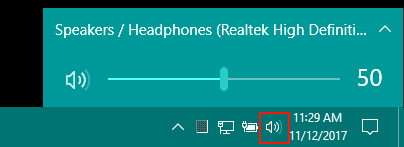
- First use the Windows Master Volume icon (Figure 6) on the Windows Desktop taskbar to set the highest volume that you want any Soundmill audio to play. This becomes the Soundmill full volume.
- Then in the Sound Item Options > Maximum Volume - Master Controls (Figure 7 at bottom), set the percentages of the full volume that you want to use for Announcements and for Music (non-Announcements). Check the enable checkboxes so that Soundmill will apply these volume percents.