Video Mill : User's Guide
 Contents
 Language
 Product Home
Effect - Motion Behavior
 Page Bottom
Motion Method
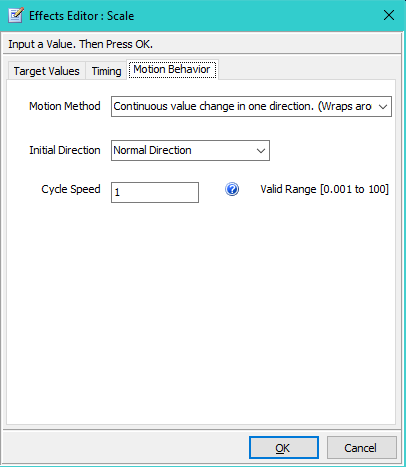
Motion Method (Motion Method) - Each type of effect has a Valid Values Range of values. And it has To and From Target values. The default motion behavior is to move from the From value to the To value, then stop animation. You can change the motion behavior with the following options.
- Continuous value change in one direction. (Wraps around Range) - When either end of the Valid Values Range is reached, the current value is set to the other end of the range and animation continues. For example, with rotation, when 360 degrees is reached, the next value would be zero degrees.
- Stop value change when To value is reached. - When the effect To Target value is reached, animation stops.
- Stop value change when either Range limit is reached. - When either end of the Valid Values Range is reached, animation stops.
- Auto-reverse change direction at Range limits. - When either end of the Valid Values Range is reached, animation reverses direction and continues.
- Auto-reverse change direction at To and From values. - When either the To or From Target values is reached, animation reverses direction and continues.
 To Page Top
Motion Method Usage Examples
- To make the animation continuously zoom in and out between the To and From values, use a Scale effect. Set the Motion Method to method 5. Set Duration to the full video Duration. Then set the Cycle Speed to 4. The video will zoom in and out in size twice during one play cycle. .
- To make the animation continuously rotate between the To and From values, use a Rotation effect. Set the Motion Method to method 5. Set Duration to the full video Duration. Then set the Cycle Speed to 4. The video will rotate back and forth twice during one play cycle.
Each type of effect has a Valid Values Range of values. And it has To and From Target values. The default motion behavior is to move from the From value to the To value, then stop animation. You can change the motion behavior with the following options.
Initial Direction
Initial Direction (Initial Direction) - You usually won't need to bother with this value. The Normal Direction of the animation motion is determined by the To and From Target values of the effect. If the To value is greater than the From value, the direction is positive. If the To value is less than the From value, the direction will be negative. When you test the animation, you may, in some cases, want the motion to begin in the opposite direction. Pick the Reverse Direction option to force it to start in the opposite direction.
Cycle Speed
Cycle Speed (Cycle Speed)
-
The Normal Speed of the animation is calculated based on the difference between the To and From Target values and the amount of Duration time of the effect. For example, if your Rotation effect has a From=0, To=10 and a Duration of 10 seconds, then the Normal Speed of the effect would be calculated as one degree per second. You can speed up or slow down the natural speed by setting the
Cycle Speed
value. It acts as a multiplier of the Normal speed. A value of 2.0 doubles the speed. A value of 3.0 triples the speed. A value of 0.5 cuts the speed in half.
Adjusting the Cycle Speed is useful when you use one of the Auto-reverse Motion Methods above. Increasing the Speed will cause the effect to cycle Up and Down between the To and From Target values. For example, you could make the video increase and decrease in size continuously.