
 Sound Mill X3 : User's Guide
 Contents
 Language
 Product Home
External Programs
 Page Bottom
Locator: Sound List Editor > Tools > Automation > External Programs > Manage .
Overview
You can run External Programs
and pass variable values to the program ( examples: .bat batch Scripts, .exe executable files, etc.). In general, any script or executable that you can start from the Windows
Start -- Run
dialog).
External Programs can be started by a Start External Program Step from a Script in the
Automator
.
The External Program could also be a Macro Recorder program that starts a desired program and simulates manual menu selections or button presses. AutoHotkey is a free, open-source utility that will perform Macro Recorder operations.
It can also be document file if the document type is associated with an executable program. For example, if "txt" files are associated to Notepad, you could specify a text document in the Run field (ie Mydoc.txt). When invoked, Notepad would open Mydoc.txt.
There is a two Step setup process.
- First, you define the External Program to Sound Mill in the Tools > Automation > External Programs > Edit menu.
- Then create a Start External Program Step in an automation Script to start the External Program. This Step can have its own Variables if the External Program accepts command line variables.
 To Page Top
External Programs Editor
Click
Tools > Automation > External Programs > Edit
, then click the
Add
button to create a new External Program definition. Next click the
Edit
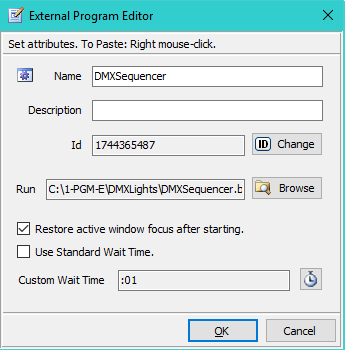
button to configure the new definition in the
External Programs Editor
dialog (see Figure 1). See the "External Programs and Active Window Focus" section below for an overview of the Window Focus items.
- Name - This field is filled in with the name of the program, but you can change it to any logical name you want.
- Description - Add more details about what the program does.
- Id - This field is a unique identifier used to locate the External Program definition. Don't change it unless you have a need to do so. The Automator uses the Id to find the External Program at execution time. If you delete the External Program definition and create a new one, it will have a different Id. If you have Script Steps referencing the old Id, the easy fix is to set the Id in this dialog to the old Id value.
- Run - Browse to the file location of the executable file (exe, bat, etc).
- Restore active window focus after starting. - When checked, Sound Mill will restore active window focus back to Sound Mill after a specified amount of time. When unchecked, no action for 'active window focus' is taken.
- Use Standard Wait Time. - When checked, the "Standard Wait Time for Restore Window Focus" is used. When unchecked, the "Custom Wait Time" (below) is used. See the Program Options dialog for "Standard Wait Time" setting.
- Custom Wait Time - Wait time before active window focus is restored back to Sound Mill . A value less than 20 milliseconds may be insuffient to allow the external program time to open. Click the Set Time button to change it.
How to Run an External Program
- In the Automator , open any Script with the Script Editor.
- Pick Start External Program in the Step type list, then click the Add a Step button.
- You'll be prompted to pick the target External Program.
- Then you are prompted to enter any Variables you want to pass to the program.
When you run the Script and this Step is executed, the External Program will be started and the Variables passed as start-up variables (parameters).
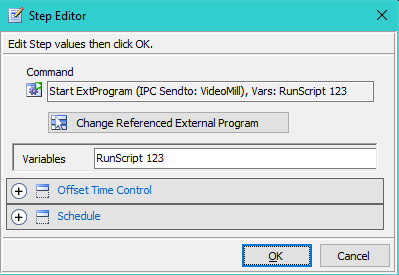
You can change the Variables later, by editing the Step with the Step Editor (see Figure 2).
Media Item Filename Keyword
If you add this keyword for the Variables, %MediaItemFilename%, when the step is executed, it will substitute the Media Filename (including folder path) of the selected Sound Item from the Sound List Editor.
External Programs and Active Window Focus
When you run an external program, it typically open up its own program window and that window becomes the active (focused) window. In Windows, keyboard keystrokes and mouse clicks are directed to the active window. Sound Mill provides a way to automatically return focus to itself after invoking an external program. And allows for a preset amount of time to expire before returning focus so that the external program can complete some work if necessary. This is especially important to Sound Mill Easy Player users who are operating the player with a remote control since the Easy Player window must be the active window to receive button push signals from the remote. See the the External Programs Editor above for details on these settings.
