Installation and Troubleshooting : Knowledge Base
 Contents
 Language
 Breakthru Software Home
Application Diagnostic and Repair Tool
 Page Bottom
This program provides some diagnostic and repair functions for cases when your program will not start. It does not require installation on your computer. Just download to any folder and double click the file to run it. Download a fresh copy to be sure you have the latest function.
Download
Latest release:
Version.release: 1.25
Date: December 15, 2020
Size: ~96 Kbytes
Pre-requisite: Microsoft .Net Framework 4.0 or later
- Download the Diagnostic Tool to any folder on your computer.
Download link: Application Diagnostic Tool
 To Page Top
General Instructions
- IMPORTANT: Close the application program before running this Diagnostic Tool.
- Double click the downloaded file to start the tool. It does not require installation.
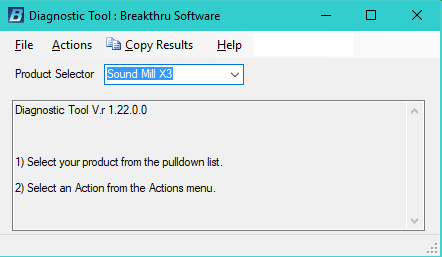
- Pick your Product version from the Product Selector. (see Figure 1.)
- Now select an Action (see below) to perform from the menu. Action results detail is listed in the textbox after running the action.
- If the action fails and you don't know why based on the message, copy and paste the results text into an email and send it to Support.
Diagnostic Actions
These actions provide information that can help diagnose problems. Support may request that you email the results on one of these actions. These actions will not alter any program control data files.
- Test permissions - Will check to see if your user id has necessary authority to perform configuration write operations. If you get a "Folder does not exist" message, try starting the program and close it. Then try this action again.
- View Program Session Log file - View program log: Many errors may be written to the program error log when detected. This may give a clue to the problem. If you see errors reported in the log, email the error messages to Support. You MUST have a text editor program (ex. NotePad or other text editor) associtated to the TXT filetype for this action. See this page for how to associate a program to a file type. [ Windows® 10/8/7 ], [XP]
- View .Net Version Installed - Will list all versions of .Net installed on your computer. Useful for checking program pre-requisites.
- View Program Information - System Information summary, OS version and physical folder path to User Documents.
- Query Network Cards - Lists Network Devices and Mac Addresses for the computer.
Repair Actions
These actions can help clean corrupted program control data files from your installation. They DO NOT affect any program work data files you may have saved from the program. You should contact Support regarding your problem before running any of these Reset Actions since each action may cause some configuration data loss. Support will advise you on which (if any) of these actions can help with your issue. You also may need to reactivate the program after these actions.
- A. Reset State Data - Recovers from a corrupted application state file. You will lose program Options preferences and settings that you have configured in the programs Options dialog. The program options and preferences will be reset to factory settings.
- B. Reset Configuration Data - Recovers from a corrupted Configuration file and Windows Registry settings.
- C. Reset Release Updates - Recovers from corrupted application data for maintenance release installation.
Copy Results
Copies the results text of any executed actions to the Windows clipboard. You can then paste the text into an email to send to Support or into a text file for your records.