Video Mill : User's Guide
 Contents
 Language
 Product Home
Scale Effect
 Page Bottom
Overview
 Scale Effect (Scale Effect)
multiplies the video size by the Target value (larger or smaller than 1) relative to the natural recorded size of the video.
You can scale along either the X or Y axis or both. Using different values for Target Values X and Y will have the affect of stretching or squashing the image.
There are From and To values for both Horizontal and Vertical directions.
Scale Effect (Scale Effect)
multiplies the video size by the Target value (larger or smaller than 1) relative to the natural recorded size of the video.
You can scale along either the X or Y axis or both. Using different values for Target Values X and Y will have the affect of stretching or squashing the image.
There are From and To values for both Horizontal and Vertical directions.
Settings
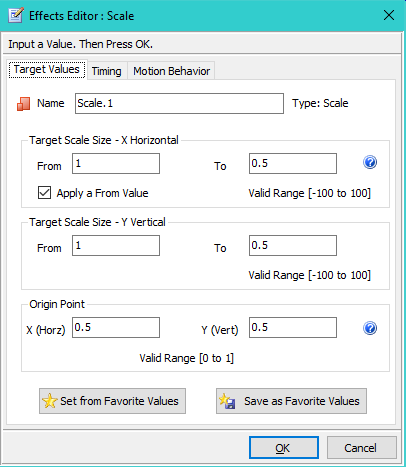
- Name - A short name to that will identify the effect's purpose.
- From - Starting value for the effect. The effect animation continues to the To value.
- To - Ending value for the effect.
- Apply a From Value - When checked, the effect uses the From value. If not checked, the effect will begin at the current value.
See the Timing section for details on timing the animation of the effect. See the Motion Behavior section for details on modifying the default behavior of the effect.
 To Page Top
Target Values
- Valid Range -100.0 to +100.0
- Special Values - Value of 1.0 is the natural recorded size of the video (no scaling). Value of 0 effectivley makes the image disappear along the axis. Values less than 1 (0.99 to 0.01) will reduce the size. For example, 0.5 will make the image half size. Values greater than 1 (2-100) will increase the size. For example, 2 will double the image size. 3 will triple it, etc.
- Unique Behavior - Negative X values will reverse the video image Horizontally. Negative Y values will reverse the video image Vertically.
Origin Point
Scaling expands (or contracts) the image along each axis from the Origin Point. An Origin Point centered on the image (X,Y = 0.5,0.5) is generally the best choice. See the Origin Point section for details the values.
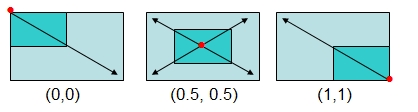
In Figure 1, Origin Points (red dots based on X,Y values below the diagram) affect the way the image is scaled. Cyan rectangle is the image original size. Light blue rectangle is the image scaled by a factor of 2 (both X ans Y). Arrows show the direction of size expansion.
Favorite Values
As a productivity aid, you can save the entire effect (all values on all tabs) as a Favorite with the Save as Favorite Values button. Then you can set all values of an effect from the Favorite values using the Set from Favorite Values button. Separate favorites are saved for each type of effect (Scale, rotation, etc).
Scale Example
This example shows a before and after size of a Screen when we set Scale Targets to X=0.5, Y=0.5 (Figure 3). The Screen rectangle sides are reduced by 50% (Screen on the righthand side).