
 Sound Mill X3 : User's Guide
 Contents
 Language
 Product Home
Play Modifiers
 Page Bottom
Locator: Sound List Editor.
Play Modifiers group
Each Sound Item has the following optional
 Play Modifiers
attributes (see Figure 1). These apply in both regular play or sequence play mode.
Play Modifiers
attributes (see Figure 1). These apply in both regular play or sequence play mode.
 To Page Top
Play Modifiers Settings
- Loop Play - If the Loop Play checkbox is checked, when a sound is played it will play in a continous loop until the Stop button is clicked. This will effectively interrupt sequence play. Delay and Multiple Play attributes are disabled when loop is used.
- Max Volume - Set the Maximum Volume (in percent) that the Sound Item should play at. Useful with Auto-Fade and other automated features that ramp the volume automatically. This will ensure that volume never exceeds this percentage for this single Sound Item. If the adjacent Enable checkbox is not checked, then this setting is ignored. See Setting a Maximum Volume for more detail. If you want a Maximum Volume enforced on ALL Sound Items, use the Maximum Volume - Master Controls option instead.
- Pre-Delay - When checked, adds a delay BEFORE the sound begins playing. Click the Pre-Delay Time Edit button to set the delay time in minutes, seconds and milli-seconds (thousandths of a second, 100 milli-seconds equals one tenth of a second). Delays are useful for separating sounds for Multiple Play or when automating sounds.
- Post-Delay - When checked, adds a delay AFTER the sound finishes playing. Click the Post-Delay Time Edit button to set the delay time.
- Multiple Play - If the Multiple checkbox is checked, the sound play will repeat the specified number of times. Example, a two (2) implies play it twice.
- Restore original volume on replay - When checked, each time the sound is replayed with Multi-Play, the volume is reset to the original Sound Item volume. Useful if Fade markers change the volume during play.
- Preemptive - When checked, the Sound Item is treated as Preemptive. (LEGACY attribute, see description below)
- Exclude From Auto-Fades - When checked, the Sound Item is EXCLUDED from any Auto-Fade behaviors which may be in effect. This does not apply to Fade Markers.
-
Audio Driver - Sets the Audio Driver used to play the Sound Item (
 Media Player (MP) driver or
  Windows Audio (WA) driver). See the Audio Driver section for a recommendation for selecting the appropriate driver.
 - Apply Output Group - When checked, the specified Output Group will be used to play the Sound Item. When unchecked, audio output will be played ONLY to the Windows Default Playback Device selected in the Window Control Panel.
-
Output Group
 - Sets Output Group which determines which Device channel(s) the Sound Item will play on. An Output Group can contain multiple Devices. Output Groups only work when the Audio Driver is set to Windows Audio driver.
 -
DSP Chain - Specifies a DSP Chain to use when the Sound Item is played. Only available when using the Windows Audio (WA) driver.
- New DSP Chain - Creates a new DSP Chain and applies it to the Sound Item. You are prompted to select the Effect(s) included in the chain. The chain is also saved for future use.
- Select DSP Chain - Pops up a list selector dialog of available DSP Chains.
- Remove DSP Chain - Removes the Chain from the Sound Item. The DSP Chain itself is not deleted from the available DSP Chains.
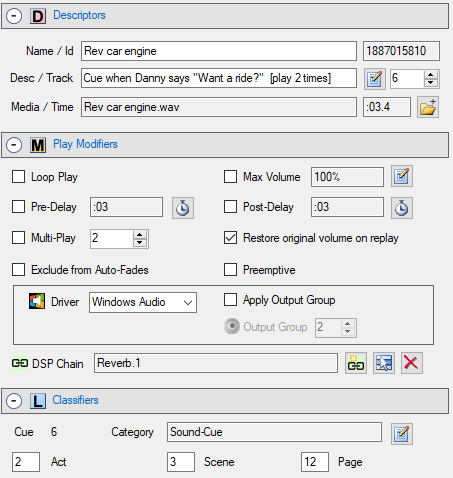
Figure 1. Sound Item Attributes
Preemptive Play
LEGACY - Preemptive Play attribute is now a legacy feature. The Automator Announcements feature is far more powerful and is the recommended approach for Announcements.
A Preemptive Sound Item is useful method for injecting announcements into a music program . It will cause all other playing sounds to suspend (pause) until the Preemptive Sound Item ends. When it ends, the suspended Sound Item(s) are resumed. Example: "Attention, the show starts in 10 minutes".
Preemptive Play Behavior
- Suspends Other Sounds - All other currently playing Sound Item are suspended (paused) until the Preemptive item finishes playing. Paused Sound Items are resumed once the Preemptive item ends.
- Auto-Fades - Preemptive Sound Items can be excluded from Auto-Fades by checking an Auto-Fade Behavior option in the Sound Item Options.
- Pre/Post-Delay - You can force all Preemptive play Sound Items to have a standard Pre-Delay and/or Post-Delay. (See the Announcements Pre/Post-Delay in the Sound Item Options dialog). This will automatically pad 'silence' space before and after the Preemptive announcement to avoid abrupt transitions between the announcement and music program.
- Preemptive Collision - If you play a second Preemptive Sound Item while another Preemptive Sound Item is playing, the current one is canceled.
