
 Sound Mill X3 : User's Guide
 Contents
 Language
 Product Home
Edit Playlist menu
 Page Bottom
Locator: Easy Player > Edit Playlist .
Playlist Overview
The Playlist contains attributes that control the appearance of the Playlist within the Eazy Player container. Each Playlist part is highly customizable (colors, fonts, sizing, etc). Any part can be shown or hidden. The Playlist controls the following parts:
- Marquee - (#3 in Figure 1) For kiosk use you can create your own business/organization banner to display at the top of the player. Most common image formats will work (png, jpg, etc. ). The player will auto-size to display the banner. If you don't a graphics department, use the COOL TEXT website to create a cool Marquee banner image in just a few clicks (it's free, no signup required).
- Title - (#4 in Figure 1) Allows you to display a title for a kiosk.
- Description - (#5 in Figure 1) Allows you to display a short description or instructions for an unattended kiosk.
- Cue Buttons - (#10 in Figure 1) The Cue Buttons are tied to individual audio files. They are touch screen enabled. The Next and Previous buttons (green buttons, #6 in Figure 1) allows users to navigate the Cue Buttons table. The player can be set for Play On Click so when the user clicks (or pushes a button) the audio starts to play.
Other common Player Elements are configured separately and apply to all Playlists.
 To Page Top
Playlist Attributes
Menu items
- Edit Playlist Attributes - Opens the Playlist Attributes Editor for the active Playlist.
- Expose Advanced Playlist Attributes for Edit - Toggles Advanced Edit Mode On/Off. When un-checked, only a basic set of vital attributes are exposed in the Visual Attributes Editor (a good choice for quick editing). When checked, all applicable attributes for a control are exposed in the Visual Attributes Editor (a good choice when you need to fine tune visual controls).
- Playlist Name - Sets the Name of the open Playlist. It also appears on the window title bar. It is used for selection dialogs so keep it relatively short.
- Title Text (#4 in Figure 1) - Sets the Title Text of the active Playlist.
- Description Text (#5 in Figure 1) - Sets the Description Text of the active Playlist.
Managing Playlist Cue Buttons
Each Cue Button in a Playlist can:
- Play a Sound Item; or
- Run a Script.
The buttons are populated in the Cue Button table (#10 in Figure 1). You need to Rebuild the Player after performing most of the actions below to propogate changes to existing Cue Buttons. The number of rows and columns in the button table is configurable in the Playlist Attributes Editor.
Adding Cue Buttons to Play Sound Items
New Cue Buttons inherit their attributes from the Cue Button Attributes specified in the Playlist Attributes Editor.
Menu items
- Choose Sound Items for Cue Buttons - Use these menu items to add or remove buttons from the Playlist. These buttons will Play Sound Items.
- Add New Buttons for All Sound Items - Adds a new Cue Button to the Playlist for all Sound Items in the Sound List.
- Add New Buttons from a Selection - You select Sound Items from a popup list dialog. Then a new Cue Button is added to the Playlist for all selected Sound Items.
- Replace All Buttons from a Selection - You select Sound Items from a popup list dialog. The Playlist is emptied of all Cue Buttons. Then a new Cue Button is added to the Playlist for all selected Sound Items. (a full replacement of the Cue Buttons)
- Delete All Buttons - Removes (clears) all Cue Buttons in the current Playlist.
- Change Sound Item for a Button - You select a Cue Button, then select a Sound Item. The selected Sound Item is now associated to the Cue Button.
Adding Cue Buttons to Run Scripts
New Cue Buttons inherit their attributes from the Cue Button Attributes specified in the Playlist Attributes Editor.
Menu items
- Choose Scripts for Cue Buttons - Use these menu items to add or remove buttons to/from the Playlist. These buttons will run Scripts in the Automator .
- Add New Buttons from Script Selection - You select Scripts from a list. Then a new Cue Button is added to the Playlist for all selected Scripts.
- Replace a Button's Script Reference - You select a Cue Button, then select a Script. The selected Script is now associated to the Cue Button.
Edit, Delete or Re-order Cue Buttons
Menu items
- Edit Attributes, Delete or Re-order Cue Buttons - Pops up a list of existing Cue Buttons in the Playlist. You can Edit the attributes of a specific Cue Button, Remove buttons, or Reorder the buttons.
Edit Cue Buttons Attributes
Menu items
- Cue Button Colors - Provides a quick way to change the Colors on one, multiple or all existing Cue Buttons.
- Set from Favorite Colors - You select a Favorite Color Group. You select a set of Cue Buttons from a list. The selected Favorite Color Group is applied to the selected Cue Buttons.
- Set from New Color Group - You create a New Color Group and select a set of Cue Buttons from a list. Then the New Color Group is applied to the selected Cue Buttons.
- Set from Player Default Color Theme - You select a set of Cue Buttons from a popup list. Then the Player Default Color Theme is applied to the selected Cue Buttons.
- Add Selected Cue Button Colors to Favorites - The Color Group of the selected Cue Button is added to the Favorite Color Groups.
Menu items
- Cue Button Font - Provides a quick way to change the Font on ALL existing Cue Buttons.
- Set from Favorite Font - You select a set of Cue Buttons from a list. Then select the Favorite Font is applied to the selected Cue Buttons.
- Select a Font - You select a Font and select a set of Cue Buttons from a list. Then the selected Font is applied to the selected Cue Buttons.
- Add Selected Cue Button Font to Favorites - The Font of the selected Cue Button is added to the Favorite Fonts.
About Cue Button Font
The Cue Button Font attribute cannot be changed on individual Cue Buttons (unlike other attributes). All Cue Buttons are assigned the same font.
Menu items
- Apply 'New Button Attributes' to Cue Buttons - After you make changes to the Cue Button Attributes in the Playlist Attributes Editor, you may want to propogate one or more attributes to existing Cue Buttons. These menu items provide a quick way to apply one or more attributes from the Cue Button Attributes to any or all existing Cue Buttons.
- All Attributes to All Buttons (excluding Text and Images) - All Attributes from the Cue Button Attributes (except Text and Background Image) are applied to All Cue Buttons. These attributes are excluded as a precaution to prevent users from losing work put into setting them. You can still apply these excluded attributes to all Cue Buttons via the next option below.
- A Selected Attribute to All Buttons - You select an Attribute. Then that Attribute from the Cue Button Attributes is applied to All existing Cue Buttons. For example, if you select the Auto-Size Attribute, the value of Auto-Size is applied to All existing Cue Buttons.
- A Selected Attribute to Selected Buttons - You select an Attribute. Then you select a set of Cue Buttons. Then that Attribute from the Cue Button Attributes is applied to the selected set of Cue Buttons.
Restoring Easy Player Window Focus after Starting an External Program
When you run a Script with a Step that starts an External Program, the external program will likely open a new app window which becomes the active, focused window. If you are using a remote control device to control the Easy Player , it must be the active (focused) window to receive remote controller signals. Therefore, you will need to restore window focus back to the Easy Player window. See the External Program Editor settings for automatically returning focus to the Easy Player window after invoking an External Program. You can manually restores focus to the Easy Player window by clicking on it with the mouse.
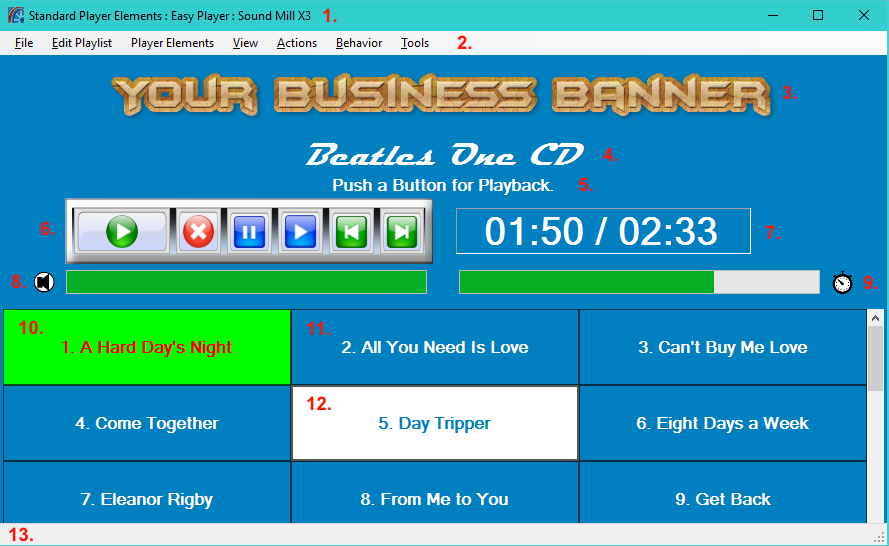
Easy Player Elements:
1. Window Title Bar;
2. Window Menu Bar;
3. Playlist Marquee Image;
4. Playlist Title;
5. Playlist Description;
6. Playback Controls Panel;
7. Playback Time Position Readout;
8. Volume Bar and Volume/Mute Indicator;
9. Playback Position Progress Bar and Playing/Paused Indicator;
10. Cue Button - Playing Cue;
11. Cue Button - Unselected;
12. Cue Button - Selected;
13. Window Status Message Bar.
