
 Matrix Mic & Player : User's Guide
 Contents
 Language
 Product Home
Output Groups and Devices
 Page Bottom
Locator: Configuration > Outputs/Devices.
Overview
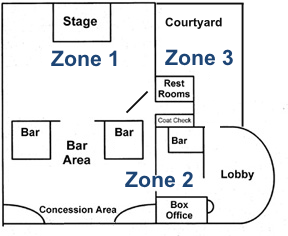
Use of Output Groups is optional. If you only need to play audio to the Windows Default Playback Device, you can ignore Output Groups and Devices feature.
The program can be pipe audio to many different zones simulataneously using the Output Groups feature.
Requirements to use Output Groups
- Each speaker system should be connected to a separate soundcard (device) or separate output jack on a multi-output soundcard.
- If you are using USB soundcards, see the separate page on USB Sound Card Considerations.
 To Page Top
Terminology
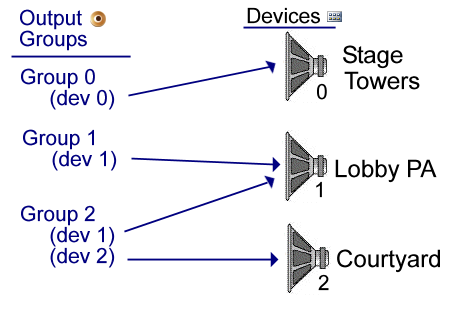
- Device - A Device is a soundcard which connects a physical speaker system to your computer. The speaker system is typically located in a separate zone or room of a building. Examples: "Lobby PA" or "Stage Tower Speakers". (see Figure 1.)
- Output Group - An Output Group tells the program which devices to pipe audio to. It can be one or multiple device(s) simultaneously. When you click Play, the audio track (or Microphone input) is played on all the devices specified in its Output Group.
Editing Devices
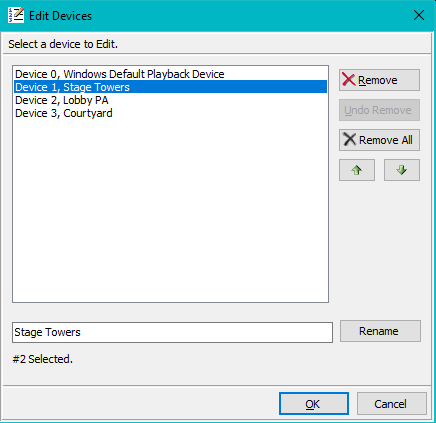
When you start Matrix Mic , it will auto-detect all connected devices (soundcards). Every detected device has a System Name as assigned by Windows and a Logical Name. The System Name is usually the name of the sound card or an output port name on multi-output soundcards (ex. "Sound Blaster X-Fi 24", "C-Media USB Audio Device", "Output port 2", etc.). When multiple USB soundcards are connected, the System Name usually has a number added to the name (ex "USB Audio Device(2)"). You can assign a Logical Name to each device to more easily identify which speakers are hooked to the device (ex. "Lobby PA").
If you are using USB sound cards, be sure to read the section on USB Sound Card Considerations.
Some multi-output devices need a special driver installed so that the Windows OS will recognize all the output ports. This is usually installed by Windows Plug and Play the first time the hardware is detected. If not, see the device manufacturer Website for instructions regarding special drivers.
Device Id
Each device has a unique Device Id which is how Matrix Mic identifies the device. It is a hash value derived from the Device System Name which is assigned by Windows. If you change a device name in the Windows Settings (or Windows Control Panel), Matrix Mic will recognize it as a new device since the name determines the Id.
Duplicate System Names
Due to a Windows API limitation there is a minute chance that two devices could get Duplicate System Names. See the page on Renaming Devices for the simple solution to this issue. Go to Configuration > View Outputs and Devices to check for duplicate names.
Edit Devices
Clicking Edit Devices will pop-up the Device List Editor (Figure 3).
- Rename - Logical Name - Allows you to change the Logical Name of the device. In the list editor, select a device in the list. Change the name in the textbox at the bottom of the editor then click the Rename button.
- Remove Device - Removes a device from your list. Use this to remove devices you no longer use.
- Move Up / Down - The Move Up and Move Down buttons (green arrows) repositions a device in the Devices list. It only defines the order devices appear in selection menus. Positional order of the devices makes no real difference for audio processing.
About Windows Default Playback Device
This device will play audio through whichever device is selected as the Default Playback Device in WCP Sound applet (Figure 2, green checkmark).
Devices Reset
The Devices List will be cleared and re-populated with all detected devices (connected soundcards). Any devices that are NOT attached to the computer will be removed from the Devices list. If any old devices are removed, then Output Groups will likely need to be edited if they reference a removed device. If you only want to delete a couple devices, you may just want to edit the Devices List and Remove them manually. Do not use this function while automation scripts are running or it could cause unpredictable results.
It is recommended that you keep the USB connection ports of all devices as consistent as possible. You generally do not need to restart the program after a Reset, but it will depend on the soundcard devices (and Operating System version). Always recheck you Device and Output Groups after you have performed a Devices > Reset .
Re-Acquire Devices
When you start the program, all current connected devices are acquired (discovered) and made available for use in your Output Groups. Re-acquire Devices will re-discover any newly attached or detached devices since you started the program. This allows you to rediscover devices without having to close and restart the program. This is useful in enviroments where USB soundcards are being plugged in or removed at unpredictable times. It may take Windows a few seconds to recognize newly plugged devices.
Clear Device Logical Names
- All Audio Devices Logical Names will be reset to their System Names.
Editing Output Group
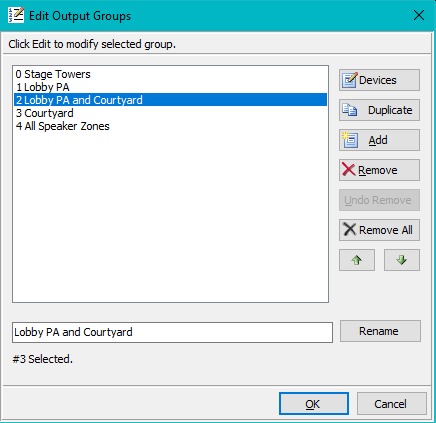
You configure Output Groups that can contain one or multiple devices. Each Output Group has a sequential index (0 ,1, 2, etc). When an audio track is played, it will be played on every device listed for the current Output Group (see Figure 5).
Edit Output Groups
Clicking Configuration > Output Groups > Edit will pop-up the Output Groups List Editor (Figure 4). Select an Output Group in the list to perform these actions on the selected group.
- Select Devices - Click the Devices button. The resulting dialog allows you to select one or more Devices to be contained in an Output Group. This replaces all devices currently in the group.
- Duplicate - The selected Output Group will be duplicated (copied and pasted into the list).
- Add - Click the Add button to add a new Output Group to the bottom of the list.
- Remove - Select an Output Group in the list, then click the Remove button to remove the selected Output Group. Click the Remove All button to remove all groups from the list.
- Move (change index) - Click the Move Up or Move Down button (green arrows) to change the order of Output Groups. This only changes the order that they will appear in selection menu lists.
- Rename - Allows you to Rename the group to identify its contents. In the list editor, select a device in the list. Change the group Name text at the bottom of the editor then click the Rename button.
Output Groups Reset
- Output Groups Reset - All of the existing Output Group definitions are removed. There is no Un-Do for a Reset so use this operation carefully. .
On reset, a new set of Output Groups is created as follows:
- One group containing only Device 0 -- the Windows Default Playback Device.
- One group for each Device containing only that single device. (ie a group for Device 1, a group for Device 2, etc.
- One group containing all current active Devices.
Why Are My Devices Not Showing Up?
Device visibility to Windows often depends on a hardware device driver. If your device is not showing in the list , check the manufacturers Website for updated drivers. Sometimes there is a separate device driver specifically for Windows. If the device does not show up in the Windows Control Panel > Sound applet (Figure 2), it will likely not be detected by Matrix Mic .
View Outputs and Devices
You can view the full configuration of Output Groups and Devices by clicking Configuration > View Outputs and Devices (see Listing 1). You can then save it to file or print it. If a device is not detected as a connected device, a Not Connected indicator (* NC) will appear next to the device. Windows Default Playback Device is not counted in the Total Devices count (as it is not a physical device).
Listing 1. View Outputs and Devices================= Output Groups ================= Total Groups: 5 (Group 0-4) ___________ Group 0 Name: Stage Towers Contains 1 device(s). Device 1, Stage Towers, Id: 937430947834167215 ___________ Group 1 Name: Lobby PA Contains 1 device(s). Device 2, Lobby PA, Id: 574271480106272358 ___________ Group 2 Name: Lobby PA and Courtyard Contains 2 device(s). Device 2, Lobby PA, Id: 574271480106272358 Device 3, Courtyard, Id: 886462652073781555 ___________ Group 3 Name: Courtyard Contains 1 device(s). Device 3, Courtyard, Id: 886462652073781555 ___________ Group 4 Name: All Speaker Zones Contains 3 device(s). Device 1, Stage Towers, Id: 937430947834167215 Device 2, Lobby PA, Id: 574271480106272358 Device 3, Courtyard, Id: 886462652073781555 (*NC) = Device Not Connected / Not Initialized =========== Devices =========== Total Known Devices: 3 Total Connected Devices: 3 Windows Default Playback Device: Set to: Stage Towers ____________ Device 0 Logical Name: Windows Default Playback Device System Name: Windows Default Playback Device Id: 0 Connected ____________ Device 1 Logical Name: Stage Towers System Name: Speakers (2- Generic USB Audio Id: 937430947834167215 Connected ____________ Device 2 Logical Name: Lobby PA System Name: Speakers / Headphones (Realtek Id: 574271480106272358 Connected ____________ Device 3 Logical Name: Courtyard System Name: Speakers (Generic USB Audio Dev Id: 886462652073781555 Connected
